Sometimes you do not want a translation done for you. You may speak both languages well and only need a comfortable place to write the translation. Or an AI has already done the first draft, and you want to check every sentence before the document goes out. Both are now possible directly in your browser.
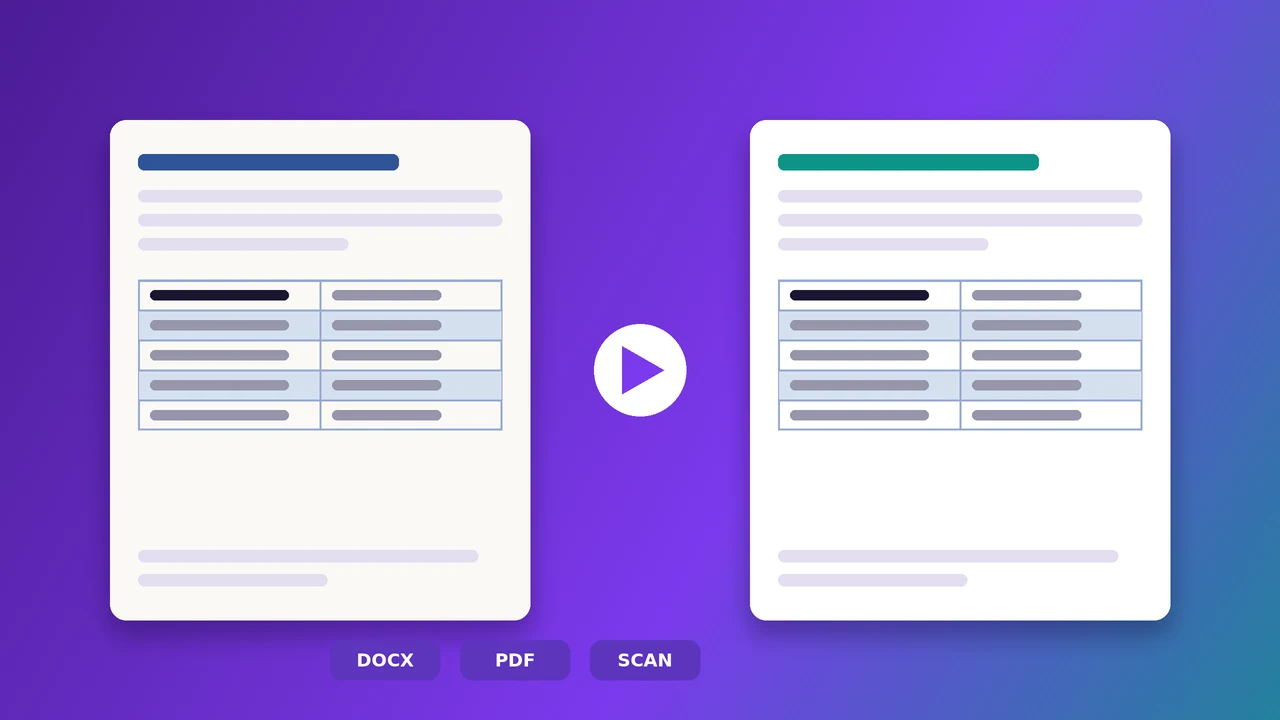
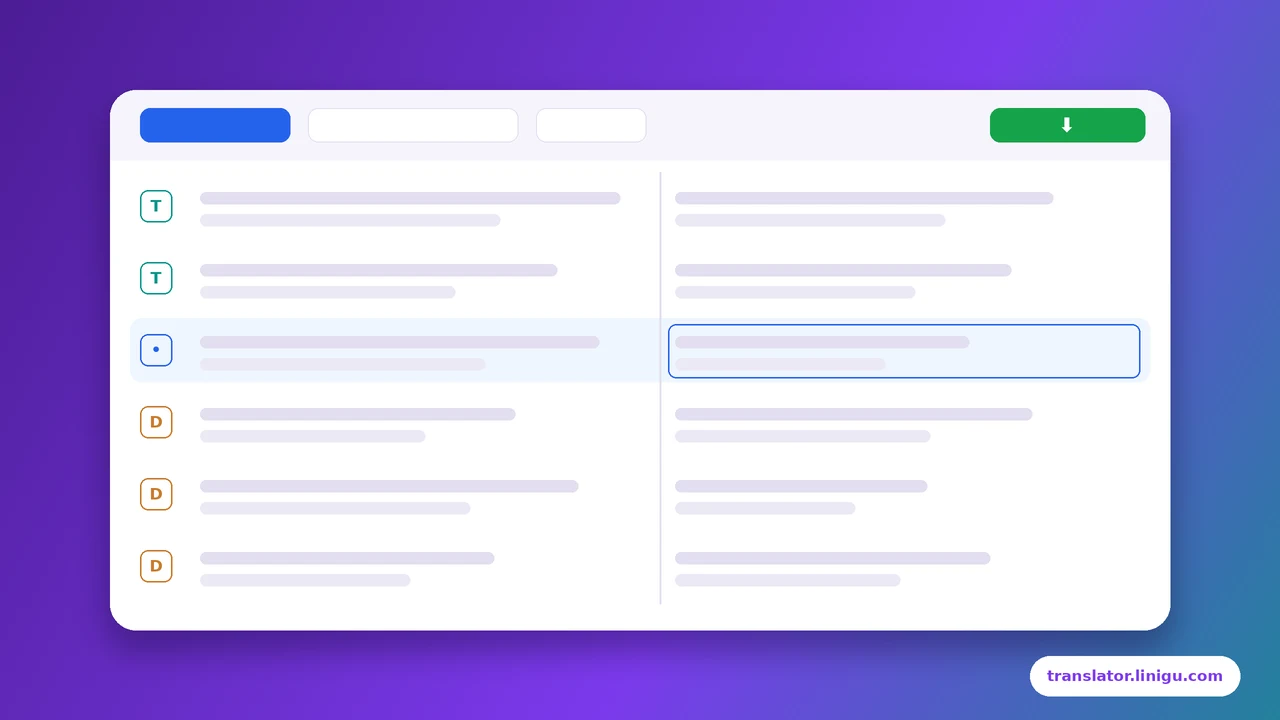
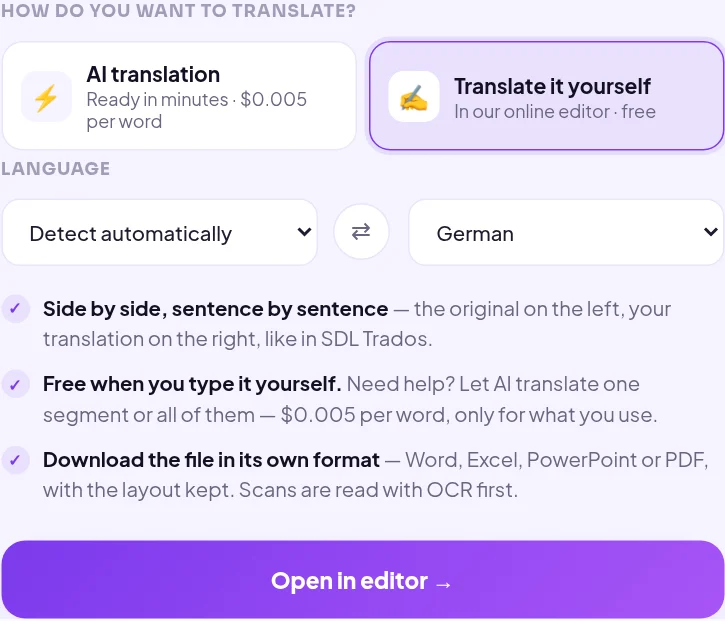
Linigu Translator opens Word, Excel, PowerPoint, PDF files, scans and photos in a free online CAT editor: original on the left, translation on the right, sentence by sentence, as in professional tools such as SDL Trados. When you are finished, you download the file in its own format with the layout kept.
Two ways to work
| Translate it yourself | AI first, then review | |
|---|---|---|
| Best for | Bilingual staff, students, translators without a CAT licence | Large documents, tight deadlines, post-editing (MTPE) |
| How it starts | Choose “Translate it yourself” after uploading | Translate with AI, then click “Review in editor” |
| Cost | Free | $0.005 per word for the AI step; reviewing is free |
| Result | Original file format, layout kept | Original file format, layout kept |
Step by step
- Upload your file on translator.linigu.com: Word, Excel, PowerPoint, PDF, a scan or a photo. You immediately see the word count and the price an AI translation would cost; see how translation is priced.
- Choose “Translate it yourself” and set the source and target language.
- Click “Open in editor”. The document is split into segments, ready to translate.
- Translate and confirm each segment with Enter. Stuck on a sentence? Press F5 and the AI suggests a translation for just that segment.
- Download the finished file in its original format. Untranslated segments keep their original text.
Reviewing an AI translation
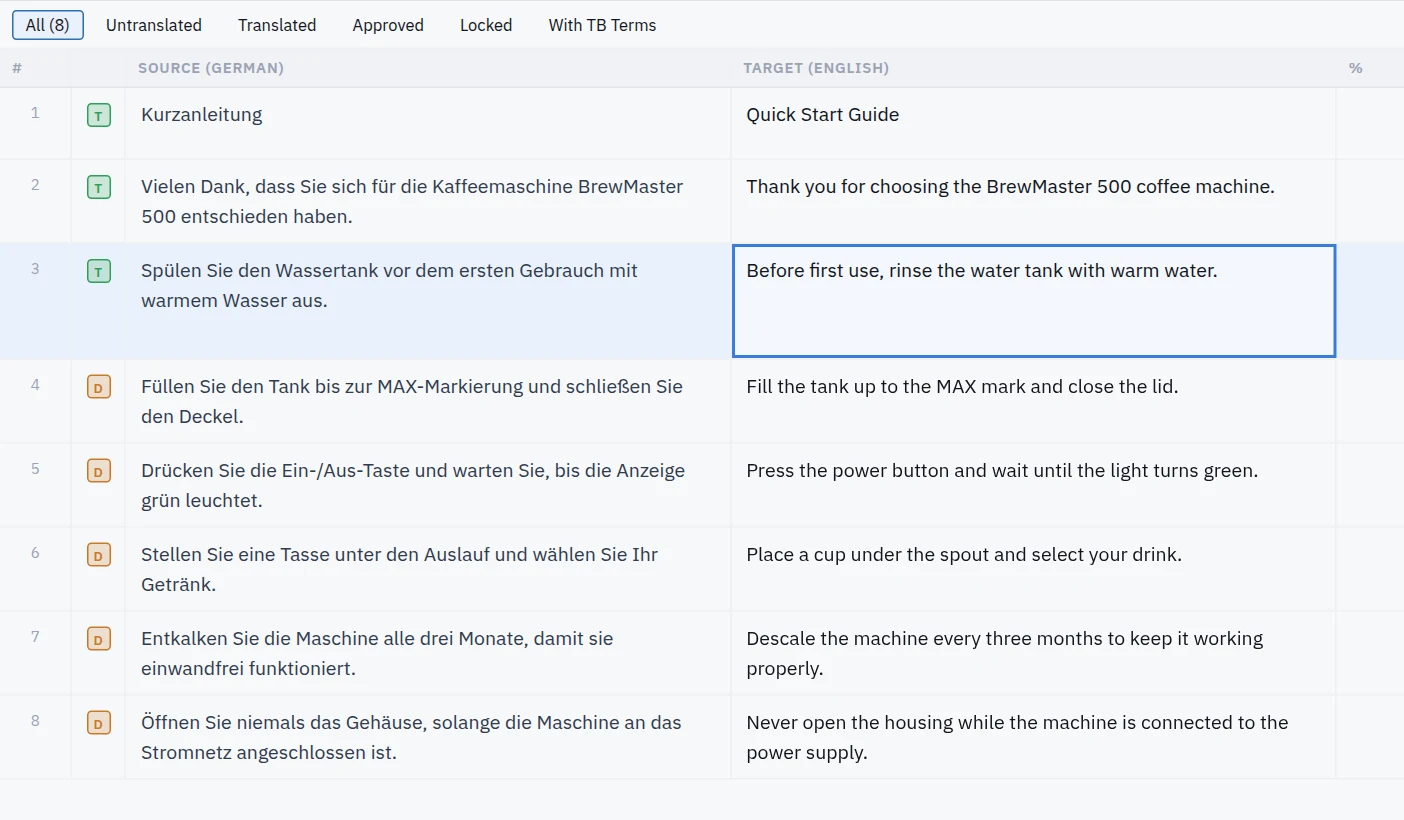
Already translated a document with AI? In the result window, click Review in editor. Every AI segment opens as a draft (D) next to its source. Read it, correct it if needed and confirm it, and it turns into translated (T). This is exactly what professional post-editors do; the international standard ISO 18587 describes it as checking a machine translation until it is accurate and reads naturally.
Keyboard shortcuts
| Shortcut | Action |
|---|---|
| Enter or Ctrl+Enter | Confirm the segment and move to the next one |
| Tab / Shift+Tab | Next / previous segment |
| F5 or Ctrl+T | AI translation of the current segment ($0.005 per word) |
| F8 | Jump to the next untranslated segment |
| Alt+Insert | Copy the source text into the target |
| Alt+1 | Apply the translation memory match |
Tips for a clean review
- Read the source first, then the translation. Check meaning before style.
- Watch numbers, units, names and dates: AI rarely invents them, but a wrong unit is costly.
- Keep terminology consistent; the search box finds every occurrence of a term in source and target.
- Light or full review? For internal use, correcting errors is enough. For publication, also polish the style.
- For a final check of the downloaded file, use the free QA Checker.
Good to know
- Segments follow the formatting of your file: a bold word in a Word sentence, or a line in a PDF, can be its own segment.
- Your edits are saved automatically when you move to another segment.
- The project stays in your dashboard for 48 hours; download your file in time. After that, all files are deleted.
- Scanned PDFs and photos are read with OCR first. See how OCR translation works.
Need a certified or professional human translation instead? Write to info@linigu.com. We will tell you what fits your document.
Frequently asked questions
Is the editor really free?
Yes. Translating and reviewing by hand is free. You only pay when you ask the AI to translate segments: $0.005 per word.
Do I need SDL Trados or another CAT tool?
No. The editor runs in your browser. SDL Trados packages (SDLPPX, SDLXLIFF) open in the same editor too.
Which formats can I translate myself?
Word, Excel, PowerPoint, PDF, scanned PDFs and photos, TXT and CSV. You download the file in its original format; see translating every file format online.
Can I stop and continue later?
Yes, within 48 hours. Open the project again from your dashboard.