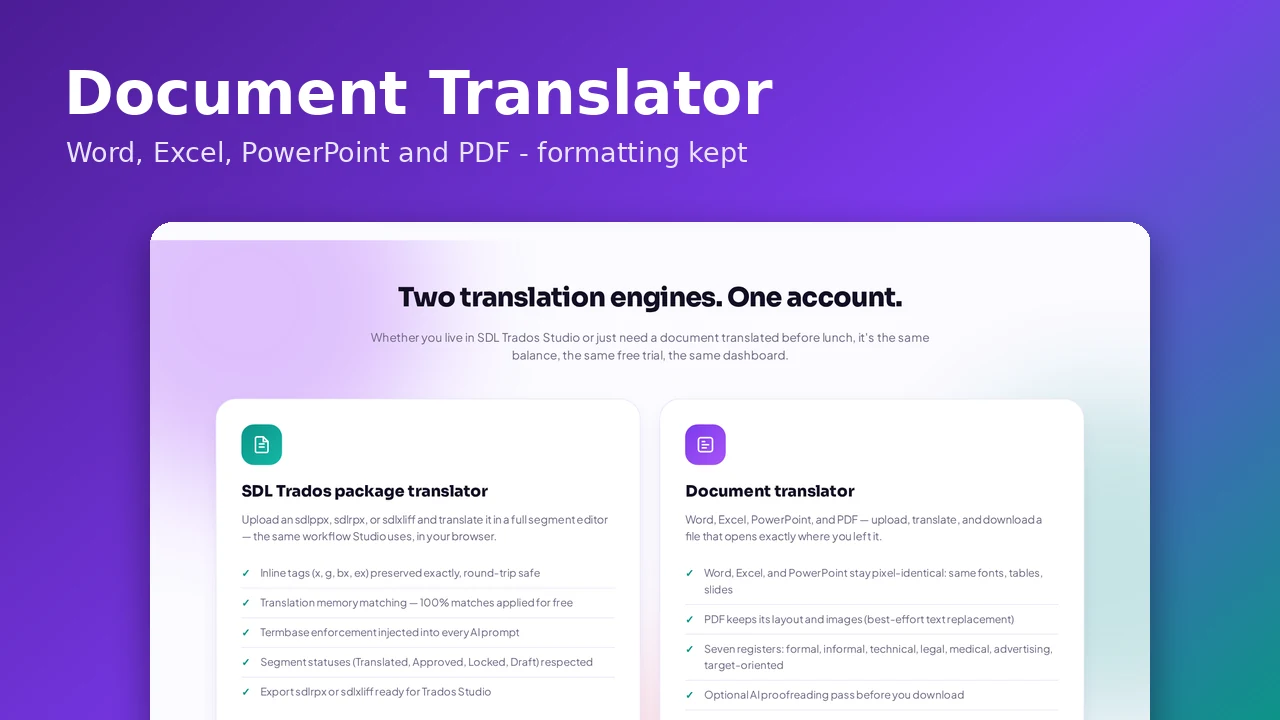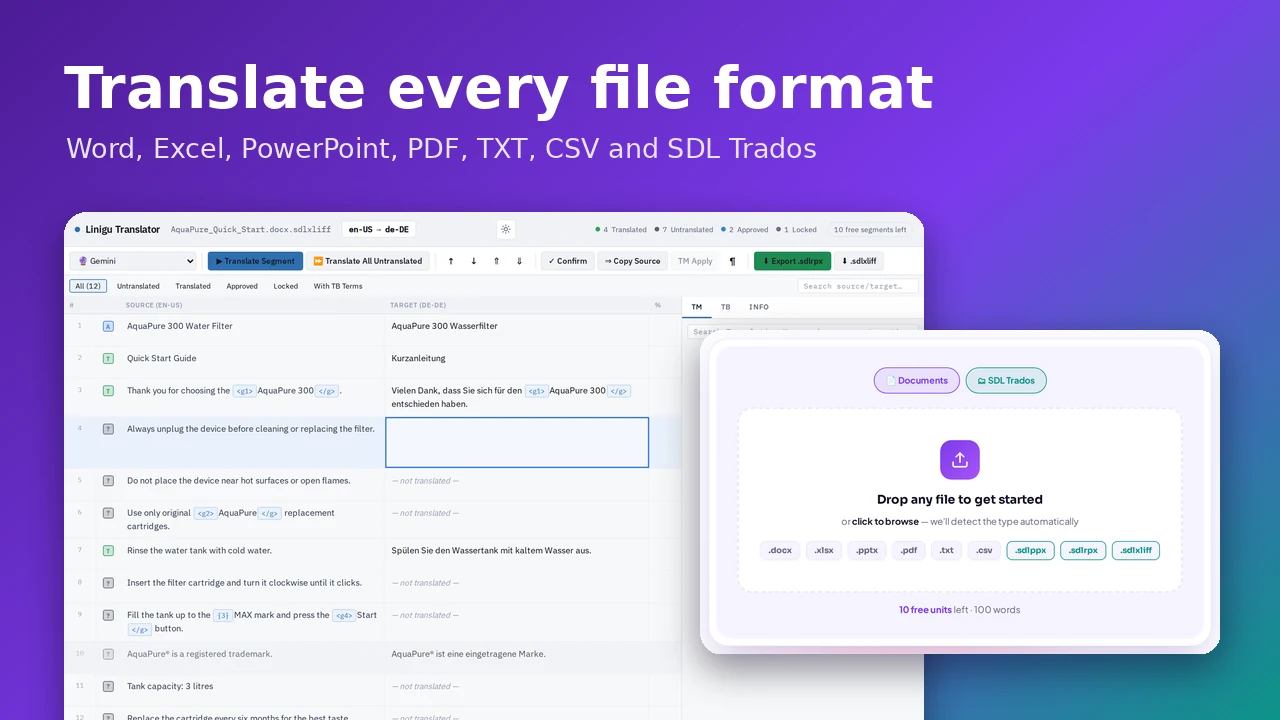
Most translation work does not arrive as plain text. It arrives as a Word manual, an Excel price list, a PowerPoint deck, a PDF brochure, a CSV of app strings — or as an SDL Trados package from an agency. Linigu Translator handles all of them in one place. This guide walks through every supported format: how to upload it, what the translator touches, what it deliberately leaves alone, and a few tips that make the result better.
Which files can you translate?
| Format | Extension | What is translated | What stays unchanged | You get back |
|---|---|---|---|---|
| Word | .docx | Paragraphs, headings, lists, tables, text boxes | Fonts, styles, bold/italic, colours, images, layout | Translated .docx |
| Excel | .xlsx | Every text cell on every sheet | Formulas, numbers, dates, formatting, column widths | Translated .xlsx |
| PowerPoint | .pptx | Text on slides, grouped shapes, tables, speaker notes | Slide layouts, fonts, images, animations | Translated .pptx |
| The text layer, span by span | Page layout, images, vector graphics | Translated .pdf | ||
| Plain text | .txt | All text | Line breaks and paragraph structure | Translated .txt |
| CSV | .csv | Every text cell | Rows, columns and separators | Translated .csv |
| SDL Trados | .sdlppx, .sdlrpx, .sdlxliff | Target segments in a full segment editor | Tags, locked segments, segment IDs, file structure | .sdlrpx return package or .sdlxliff |
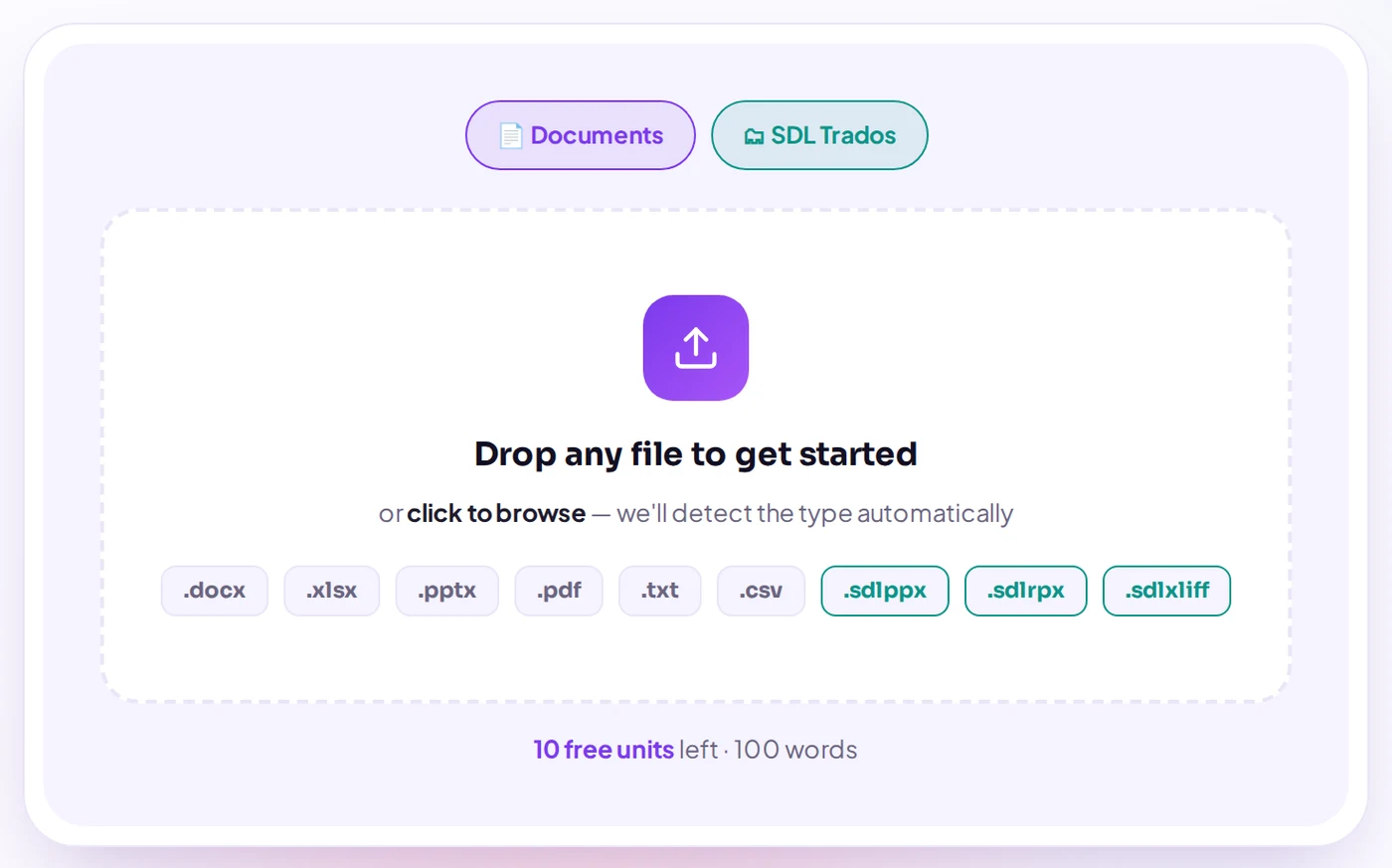
Documents use the document translator; Trados files open in the SDL editor. The upload box detects which one automatically.
Part 1 — Translating documents (Word, Excel, PowerPoint, PDF, TXT, CSV)
Step 1: Upload the file and check the format preview
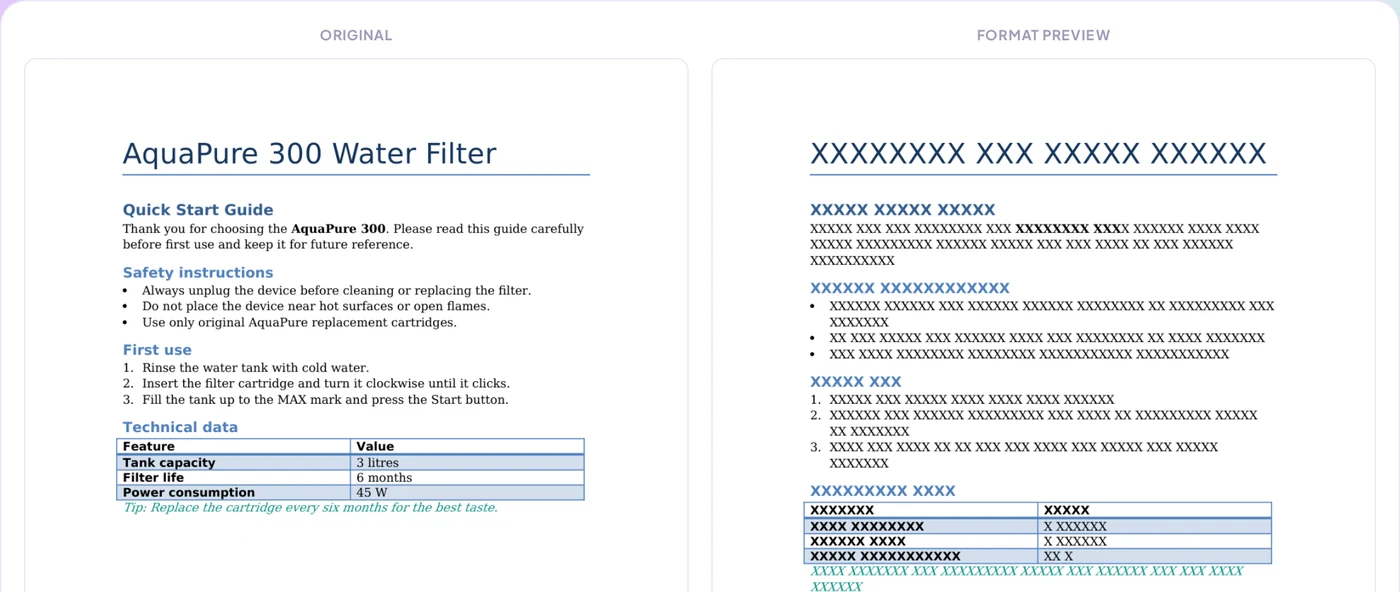
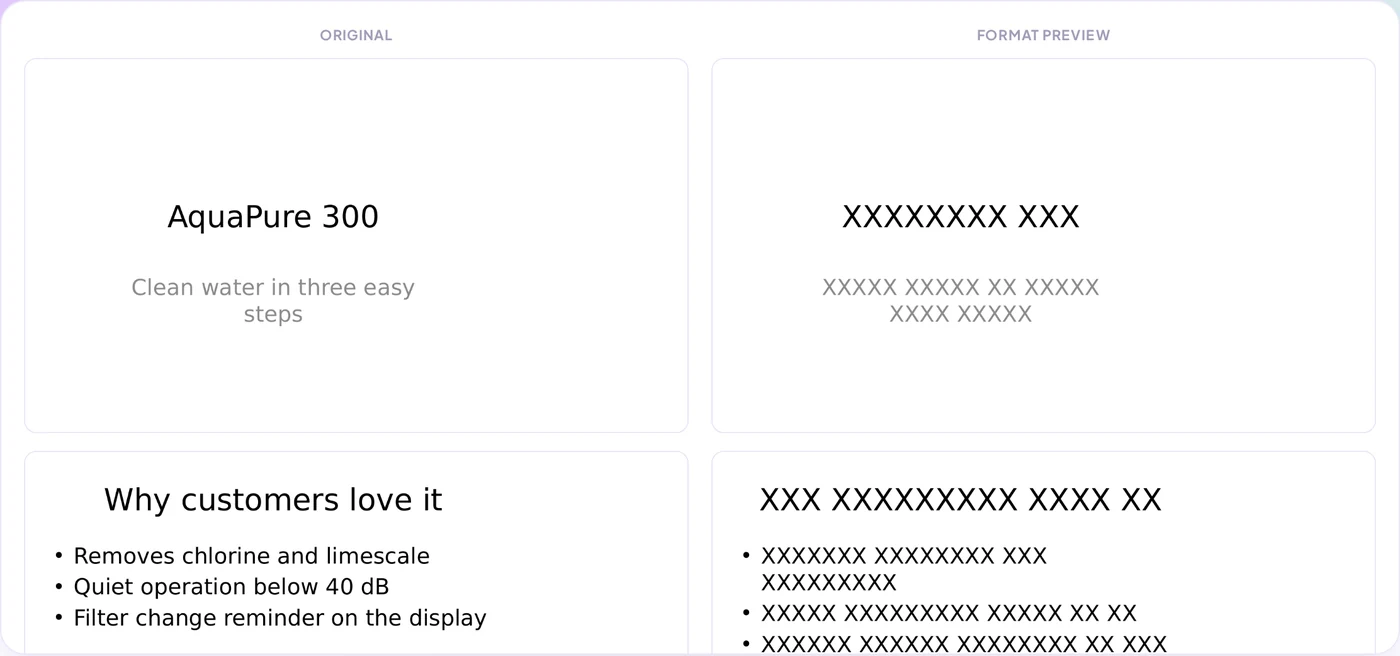
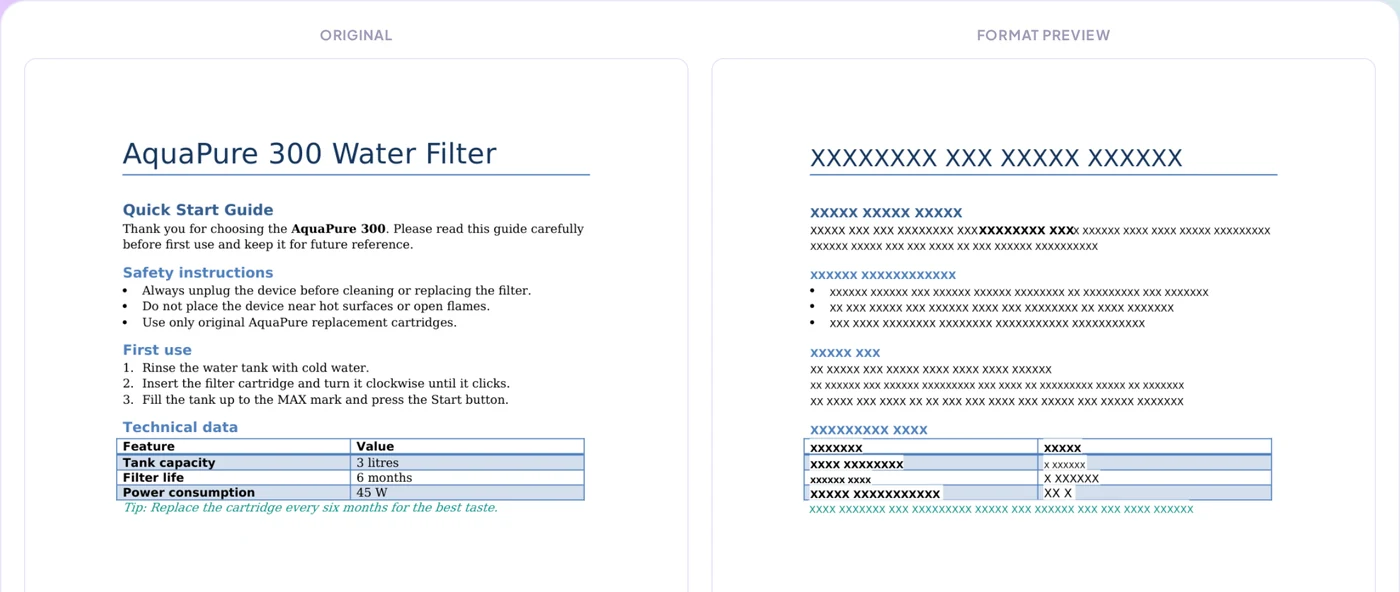
Drop the file into the upload box on translator.linigu.com. Before you choose a language or pay anything, the page shows the original next to a format preview in which every word is replaced by XXXXX. That preview is the layout your translation will land in — a quick way to confirm that headings, tables and lists are recognised.
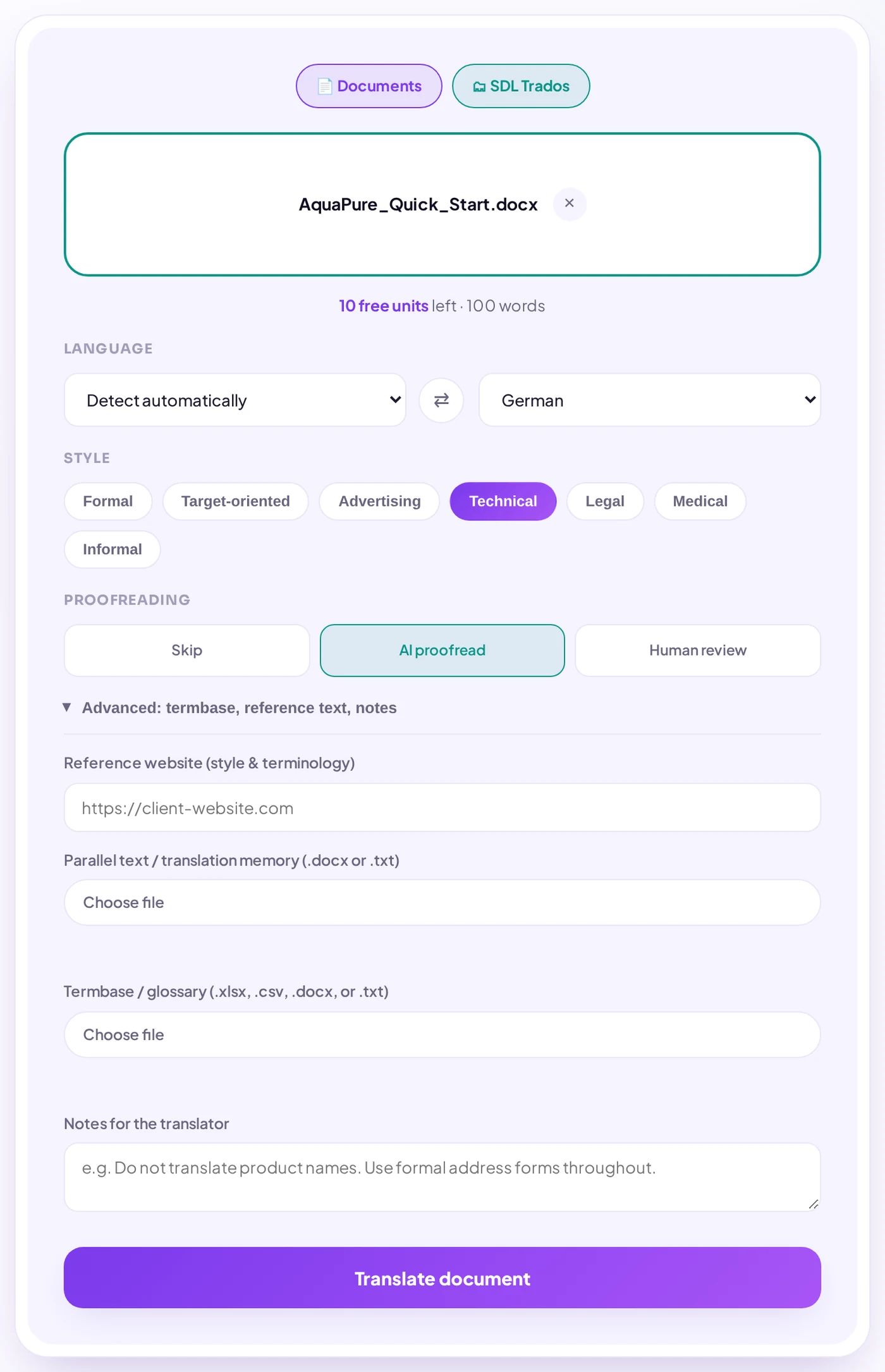
Step 2: Choose languages, style and proofreading
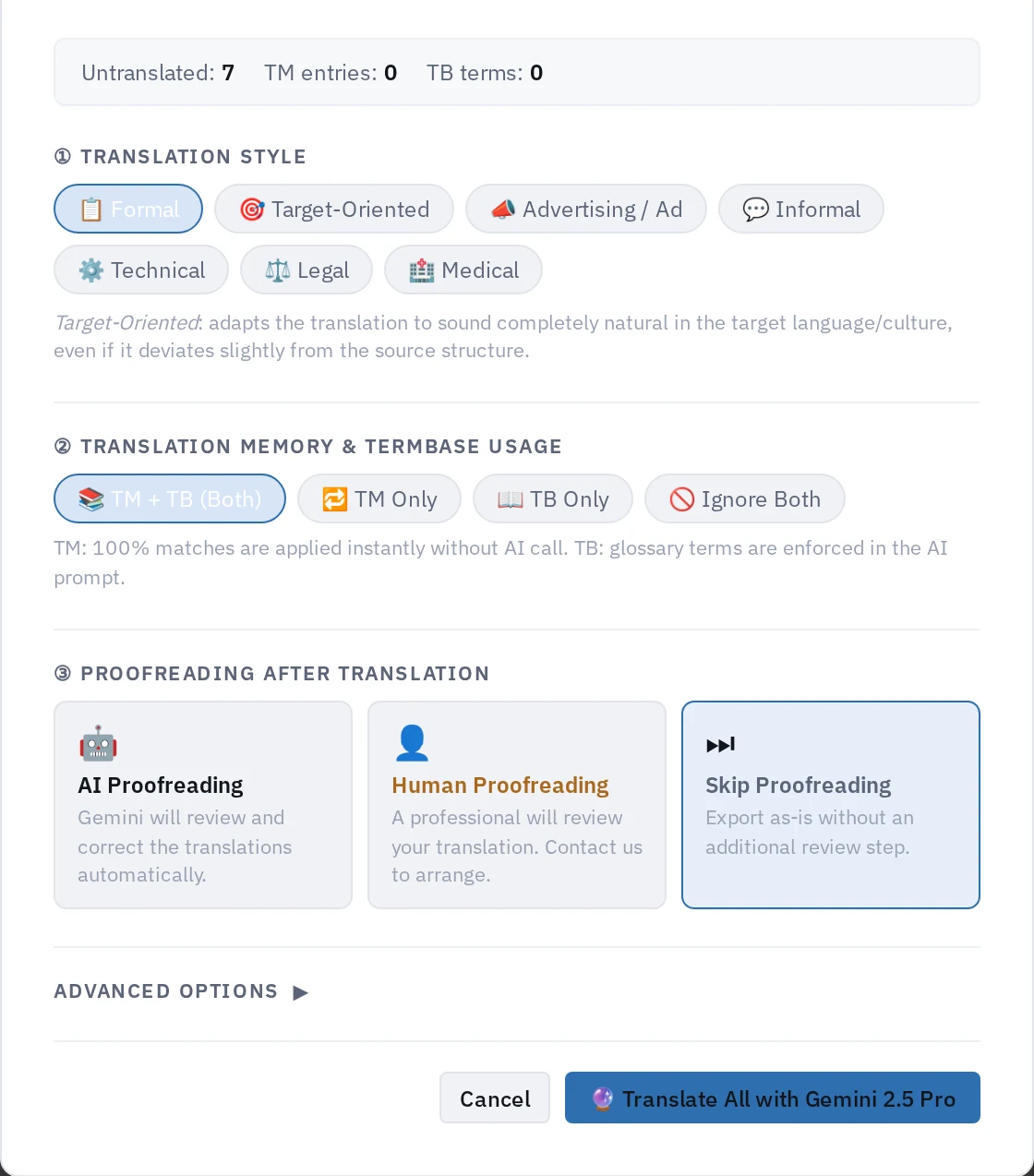
The source language can be detected automatically. Pick the target language (English, German, Turkish, French, Spanish, Italian, Polish, Dutch, Portuguese, Russian, Arabic, Chinese, Japanese or Korean) and one of seven styles: formal, target-oriented, advertising, technical, legal, medical or informal. An optional AI proofreading pass reviews the translation before you download it; human review can be requested as well.
Step 3 (optional): Give the AI your references
Open Advanced to add what a human translator would ask for:
- Reference website — the client’s site, used for style and terminology.
- Parallel text / translation memory (.docx or .txt) — previous translations. Exact matches are reused and not billed.
- Termbase / glossary (.xlsx, .csv, .docx or .txt) — two columns, source and target, plus an optional usage column (e.g. “forbidden”).
- Notes for the translator — e.g. “Do not translate product names” or “Use informal address”.
Step 4: Translate and download
Click Translate document. When it is done, the original and the translation are shown side by side and the translated file is ready to download. Your recent projects stay in the dashboard for 48 hours.
Format-by-format tips
Word (.docx)
Text is translated run by run, so bold words stay bold and a coloured tip stays coloured. Tables and text boxes are included. Tip: accept or reject tracked changes in Word before uploading, so only the final text is translated.
Excel (.xlsx)
Only text cells are sent for translation. Formulas, numbers and dates are never touched, so totals still calculate after translation.

PowerPoint (.pptx)
Titles, bullet points, grouped shapes, tables and speaker notes are translated; the slide design stays the same. Tip: translated text can be longer than the original — German often needs about 30% more space — so check tight text boxes after download.
PDF (.pdf)
The text layer of the PDF is replaced in place, keeping the page layout and images. This is best effort by nature: a PDF is a print format, not an editable one. Scanned PDFs (pages that are only images) have no text layer and cannot be translated yet. Tip: if you have the Word or PowerPoint source of a PDF, translate that instead — the result is always cleaner.
Plain text (.txt) and CSV (.csv)
TXT files keep their line structure; CSV files keep rows, columns and separators. Every text cell of a CSV is translated — if a column contains IDs or keys (such as btn_start), remove it before upload or say so in the notes.

Part 2 — Translating SDL Trados files (SDLPPX, SDLRPX, SDLXLIFF)
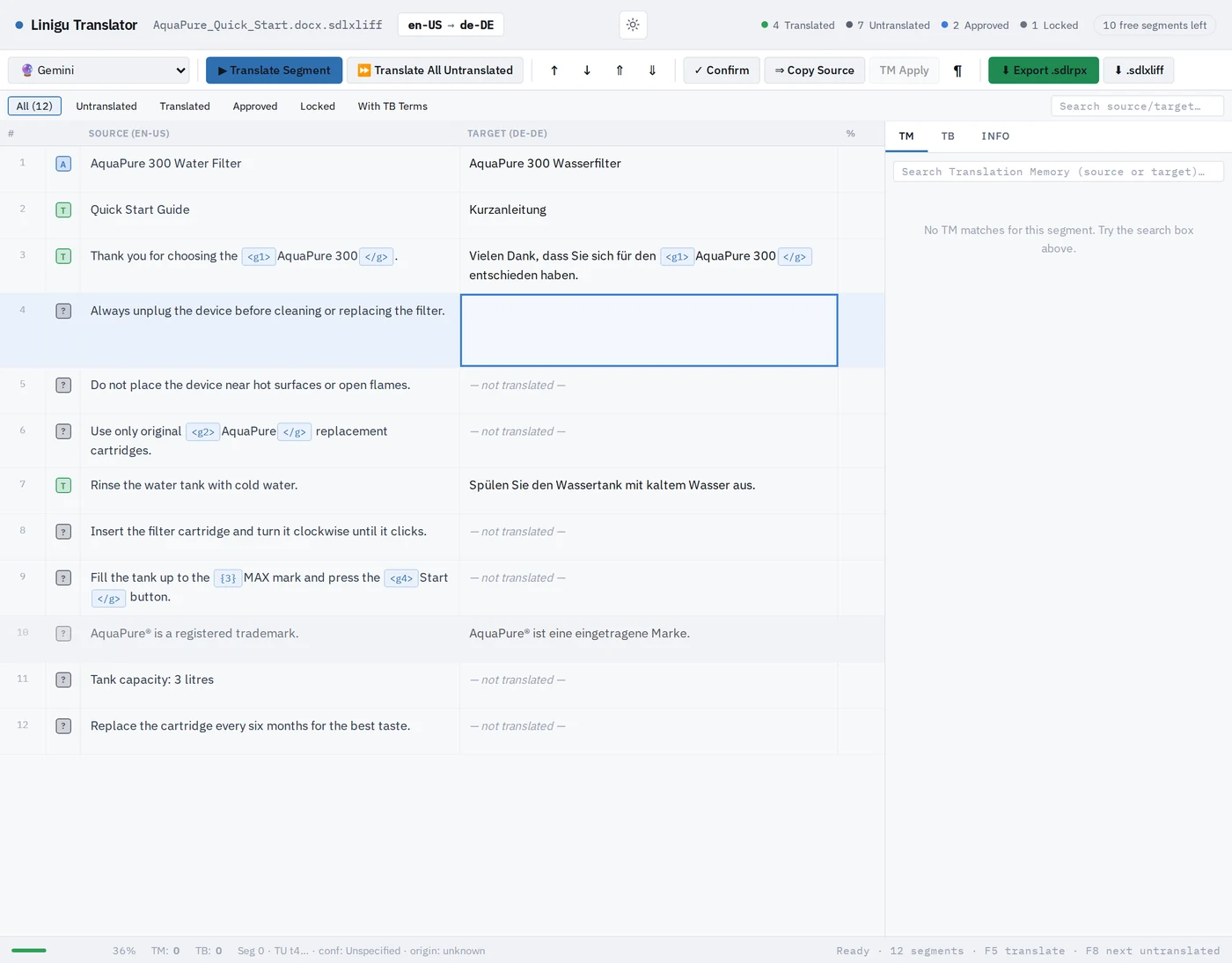
Trados files open in a segment editor that works like Trados Studio, right in the browser — useful on a Mac, on Linux or on any computer without a Studio licence. Read more in our SDL Trados translator article.
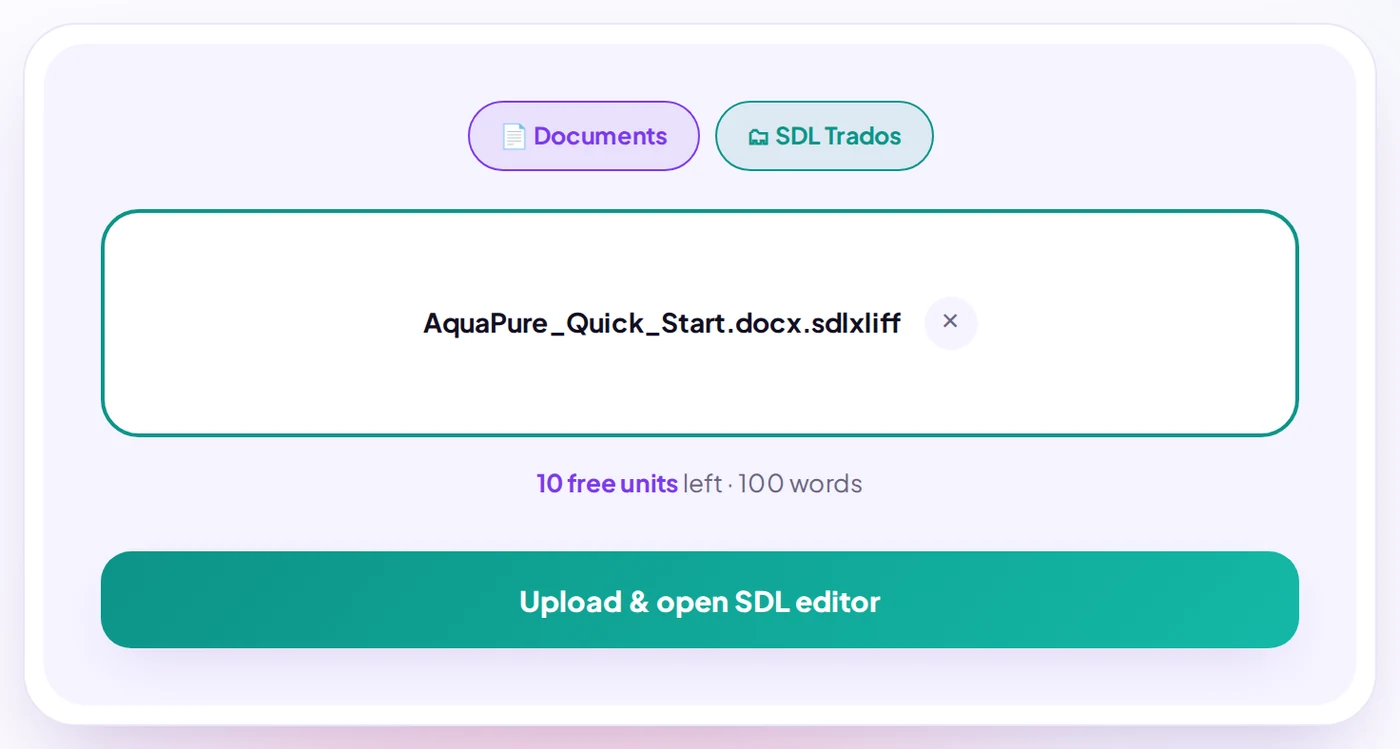
- Upload the project package (.sdlppx), a return package (.sdlrpx) or a single .sdlxliff and click Upload & open SDL editor.
- Review the segments. Status icons show what is translated, approved or locked; tags appear as protected pills.
- Translate one segment (F5) or all untranslated segments at once. The translation memory and termbase from the package are used: 100% matches are applied without an AI call.
- Export a .sdlrpx return package for Trados Studio, or the .sdlxliff file.
Part 3 — Check the translation before you deliver
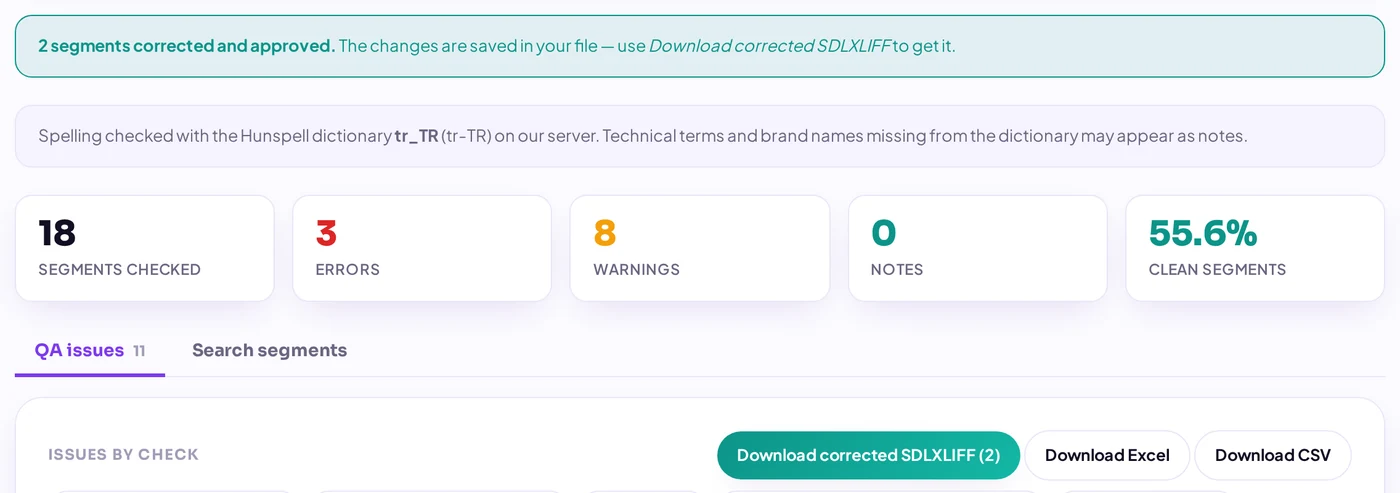
For Trados files, the free QA Checker finds missing tags, wrong numbers, forbidden terms, inconsistencies and spelling mistakes — and lets you correct them directly in the report before downloading the corrected SDLXLIFF or return package.
Quick checklist
- Use the editable source (DOCX, PPTX, XLSX) instead of a PDF whenever you can.
- Upload a glossary for product names and key terms — it is applied to every sentence.
- Add old translations as parallel text: exact matches are free.
- Choose the style that matches the text type (technical, legal, medical, advertising…).
- Check long text in slides and tables after translation.
- For Trados packages, run the QA Checker before sending the return package.
Frequently asked questions
Is my file used to train AI models?
No. Files are processed for your session only and removed automatically; they are never used for training.
Can I try it for free?
Yes. After signing in, the first 10 text units (up to 100 words) are free — enough to test any format.
Which format gives the best result?
Editable Office files (DOCX, XLSX, PPTX) and Trados files, because their structure is fully known. PDF works well for text-based PDFs but remains best effort. See also our document translator overview.
References
The formats in this guide are defined by these open standards:
- OASIS: XLIFF Version 1.2 — OASIS Standard
- Ecma International: ECMA-376 Office Open XML File Formats
- Wikipedia: PDF (ISO 32000)
- IETF: RFC 4180 — Common Format and MIME Type for CSV Files
- Wikipedia: Translation Memory eXchange (TMX)
- Wikipedia: TermBase eXchange (TBX, ISO 30042)