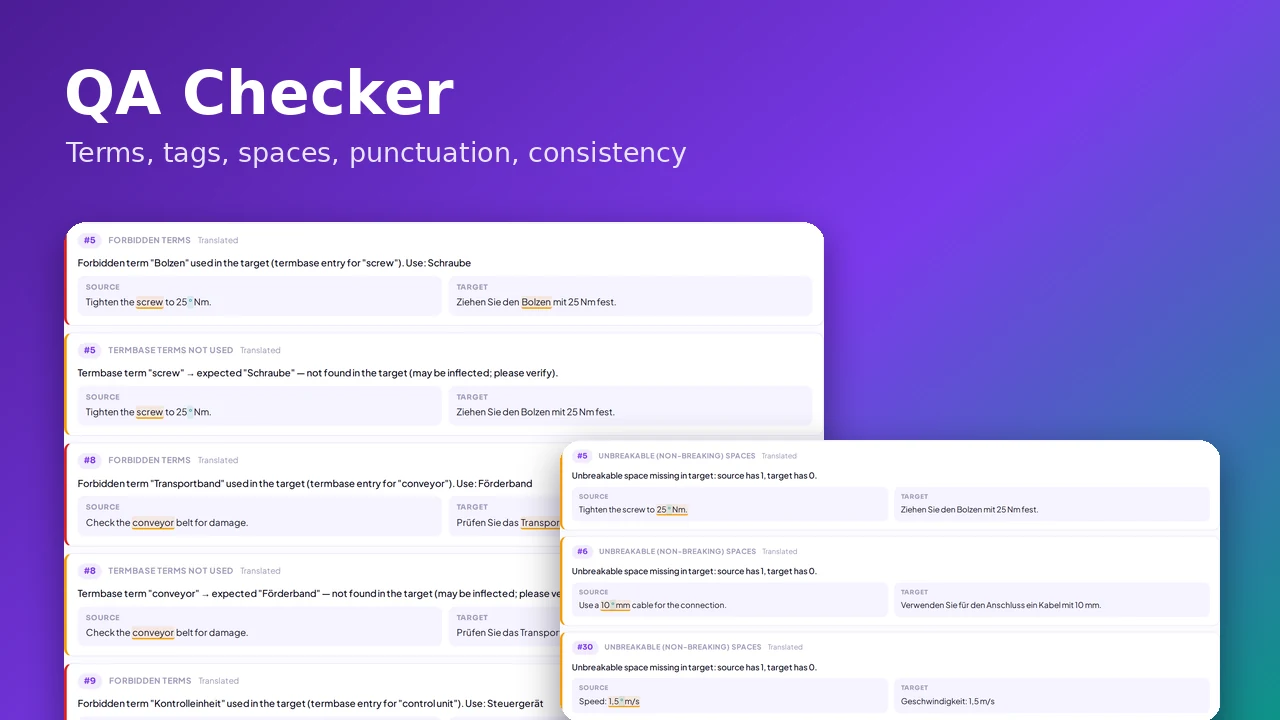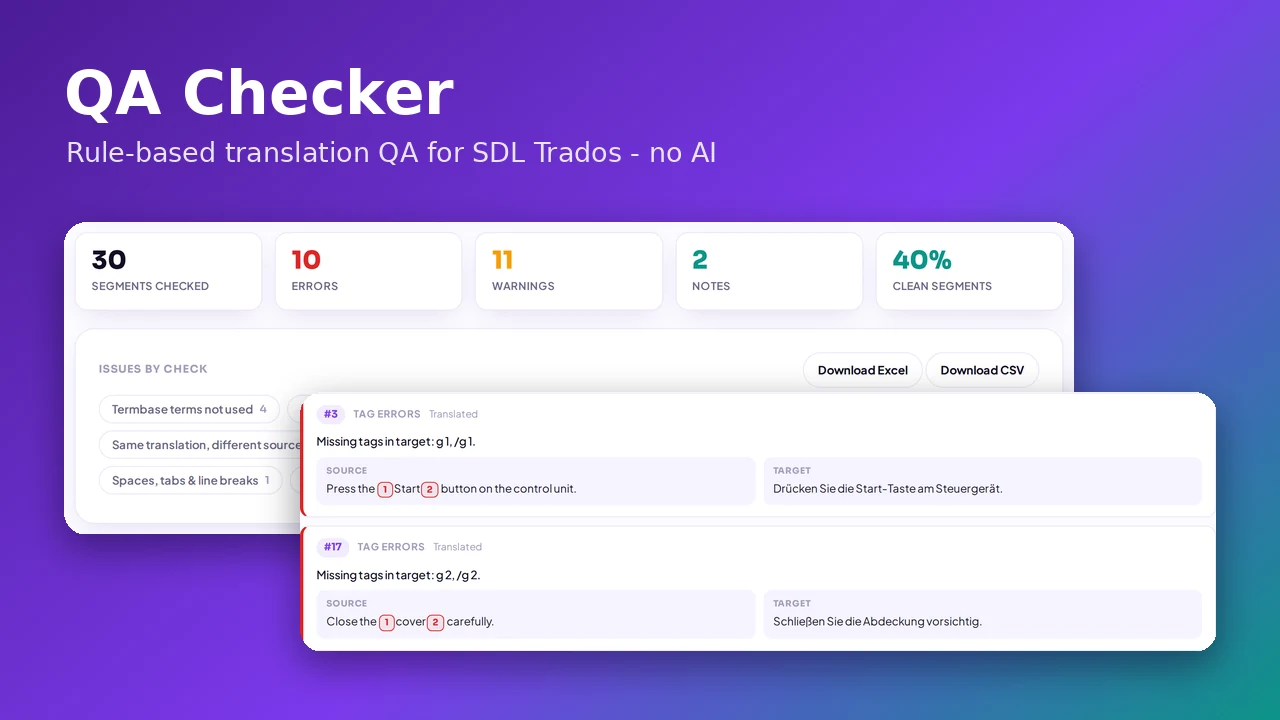
A QA report is only half of the job. Xbench, the Trados Studio QA Checker and most other translation QA tools are excellent at finding problems — a missing tag, a forbidden term, a number that changed. But then the real work starts: open the CAT tool, locate segment 1,847, fix it, save, run the check again, and repeat thirty times.
The Linigu QA Checker now closes that loop. You can correct the target text directly in the QA report, the change is written into the SDLXLIFF immediately, the segment is set to Approved, the whole file is checked again automatically — and when you are done you download the corrected SDLXLIFF or a ready-to-deliver .sdlrpx return package. All in the browser, without Trados and without AI.
The QA round trip: why “find” is not enough
Think about a typical review of a Trados package with a classic QA tool:
- Run Xbench (or the Trados QA Checker) and get a list of 60 issues.
- Switch to the CAT tool for every issue, find the segment, fix it.
- Save, go back to the QA tool, run the check again to see whether the fixes worked.
- Create the return package and send it.
Every switch costs time and concentration, and it only works on a computer that has the CAT tool installed. Xbench is a read-only checker: it never changes your files. Its Edit Segment feature can jump to the segment in a supported CAT tool, but the actual correction always happens somewhere else. For a reviewer on a Mac, a project manager without a Trados licence or a translator on a borrowed laptop, that is where the process breaks.
How correcting in the Linigu QA Checker works
1. Click “Edit” on the target
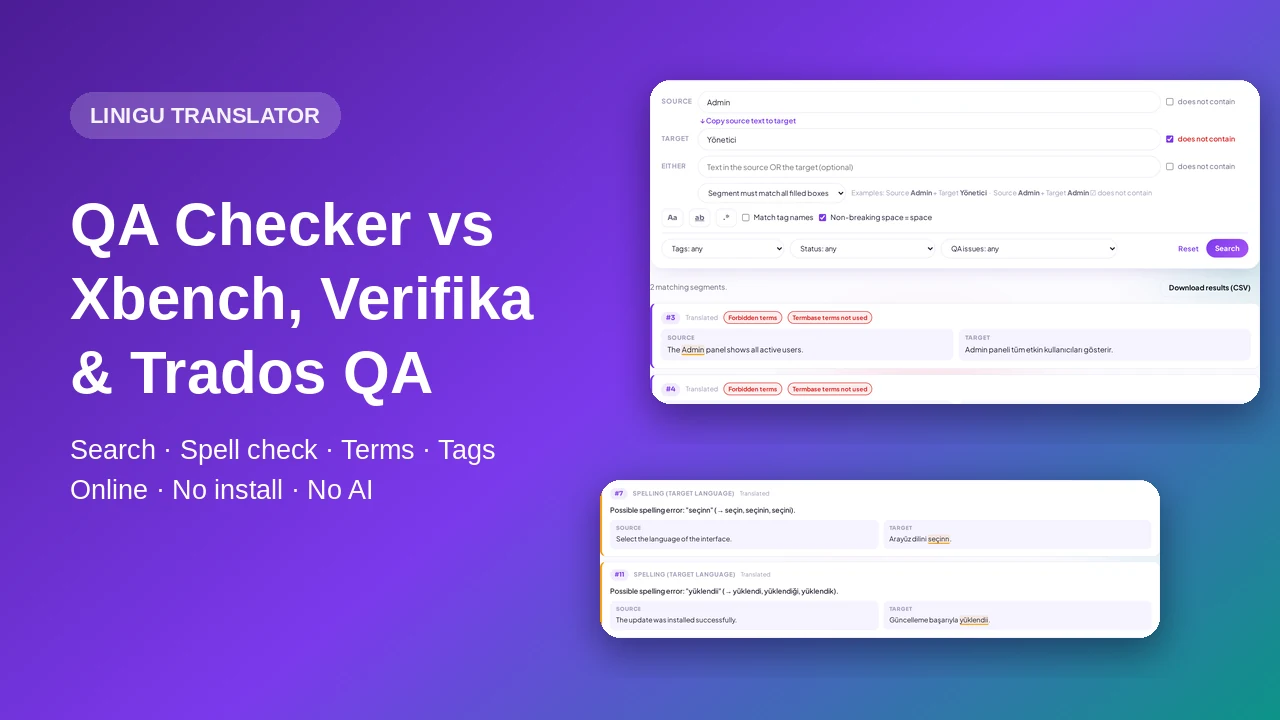
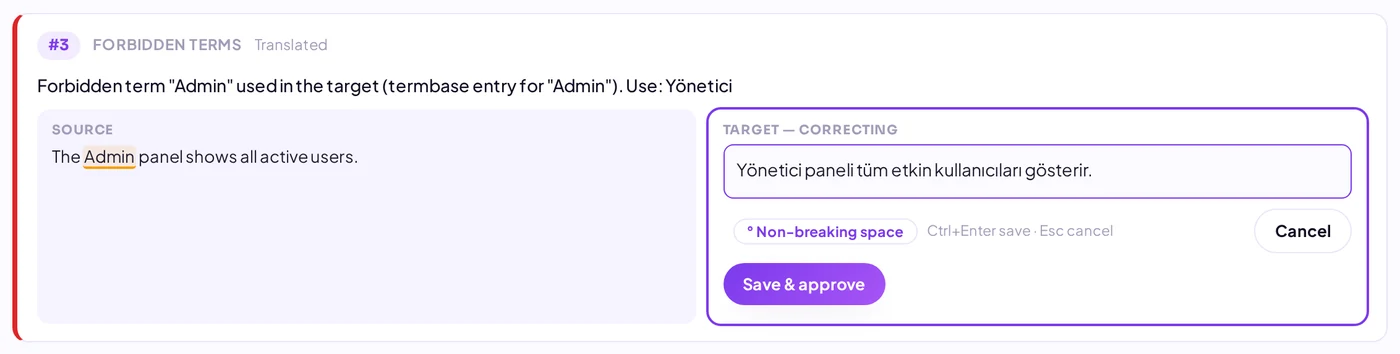
Every issue card and every search result has an ✎ Edit button on the target side (double-clicking the target works too). Here the termbase says “Admin” must be translated as “Yönetici”:

2. Correct the text and press Ctrl+Enter
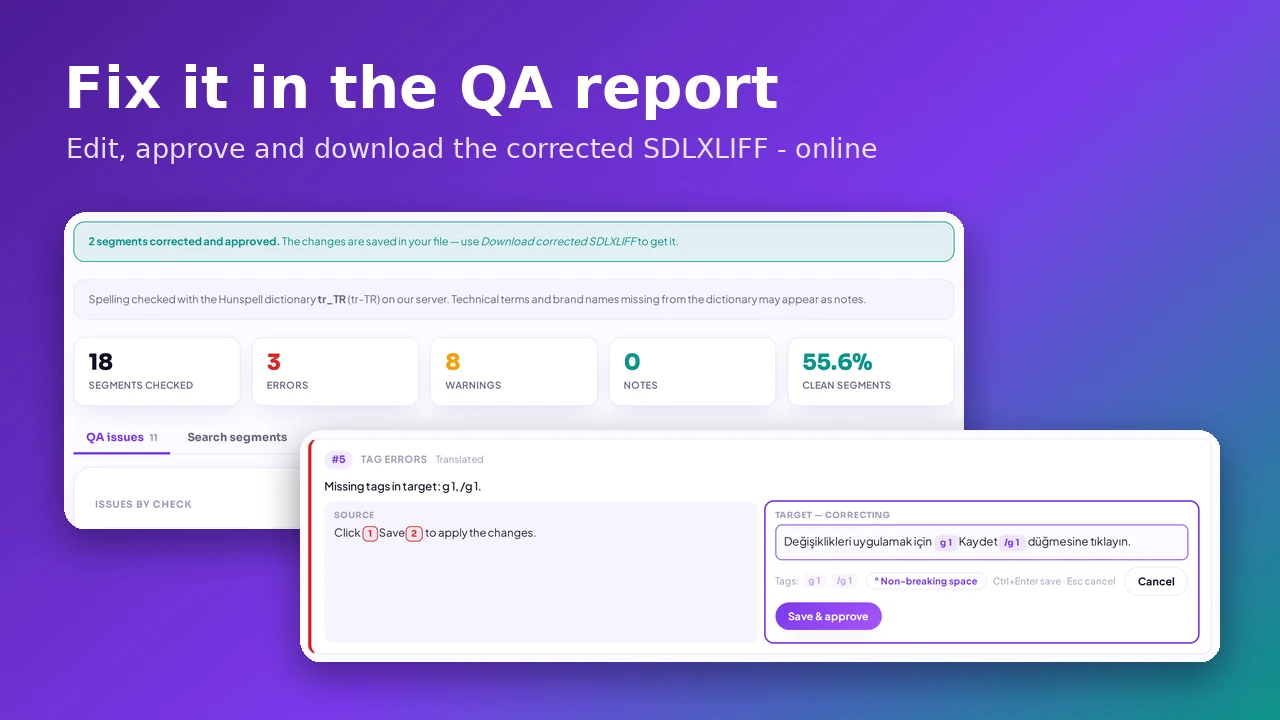
The target becomes an editor right inside the card. The source stays visible next to it. Ctrl+Enter saves and approves, Esc cancels.
3. Tags are safe
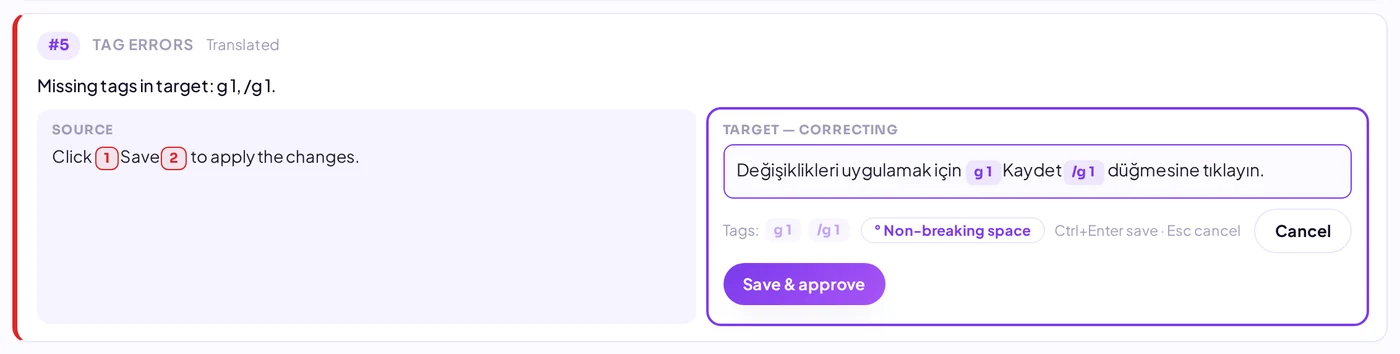
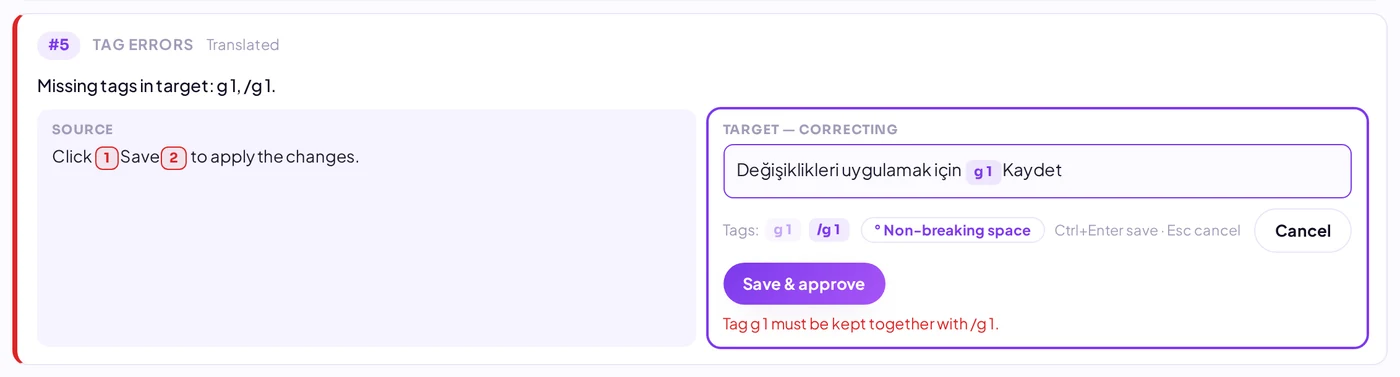
Tags are shown as protected pills that cannot be broken by typing. Missing tags are inserted from the tag palette (or with Ctrl+Shift+1…9), and a button adds a non-breaking space. Before anything is written, the checker verifies that opening and closing tags are complete and not crossed.
4. The report refreshes by itself
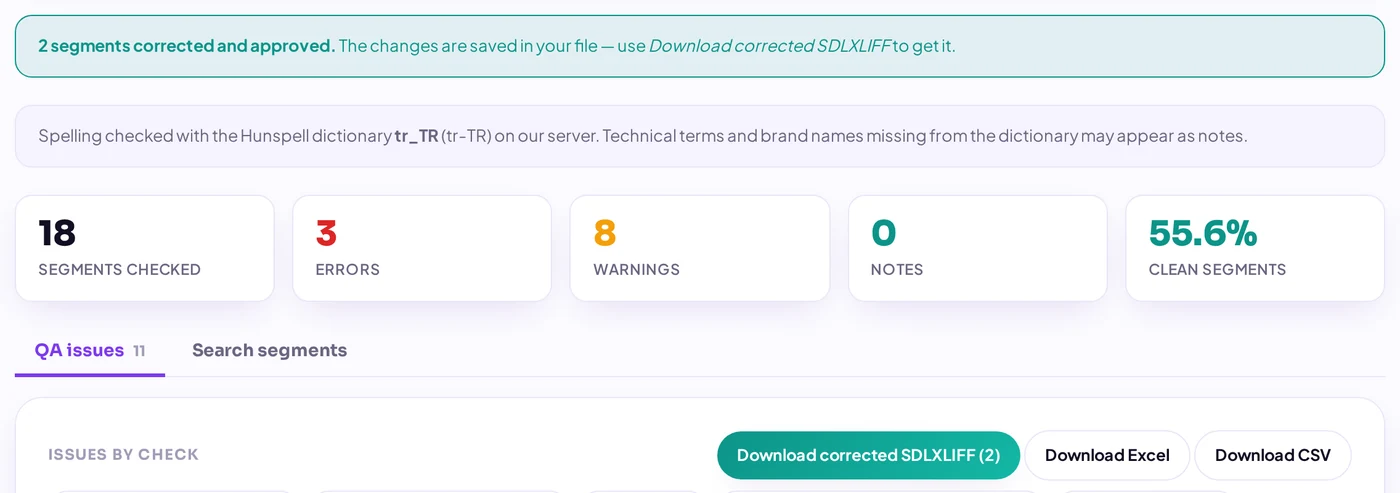
After saving, the document is read again from the corrected file and all checks run again. Fixed issues disappear, the counters update, and a message tells you whether the segment now passes all checks. In our test file the issue count went from 14 to 12 with the first correction and to 10 after three.
5. Review your corrections and download
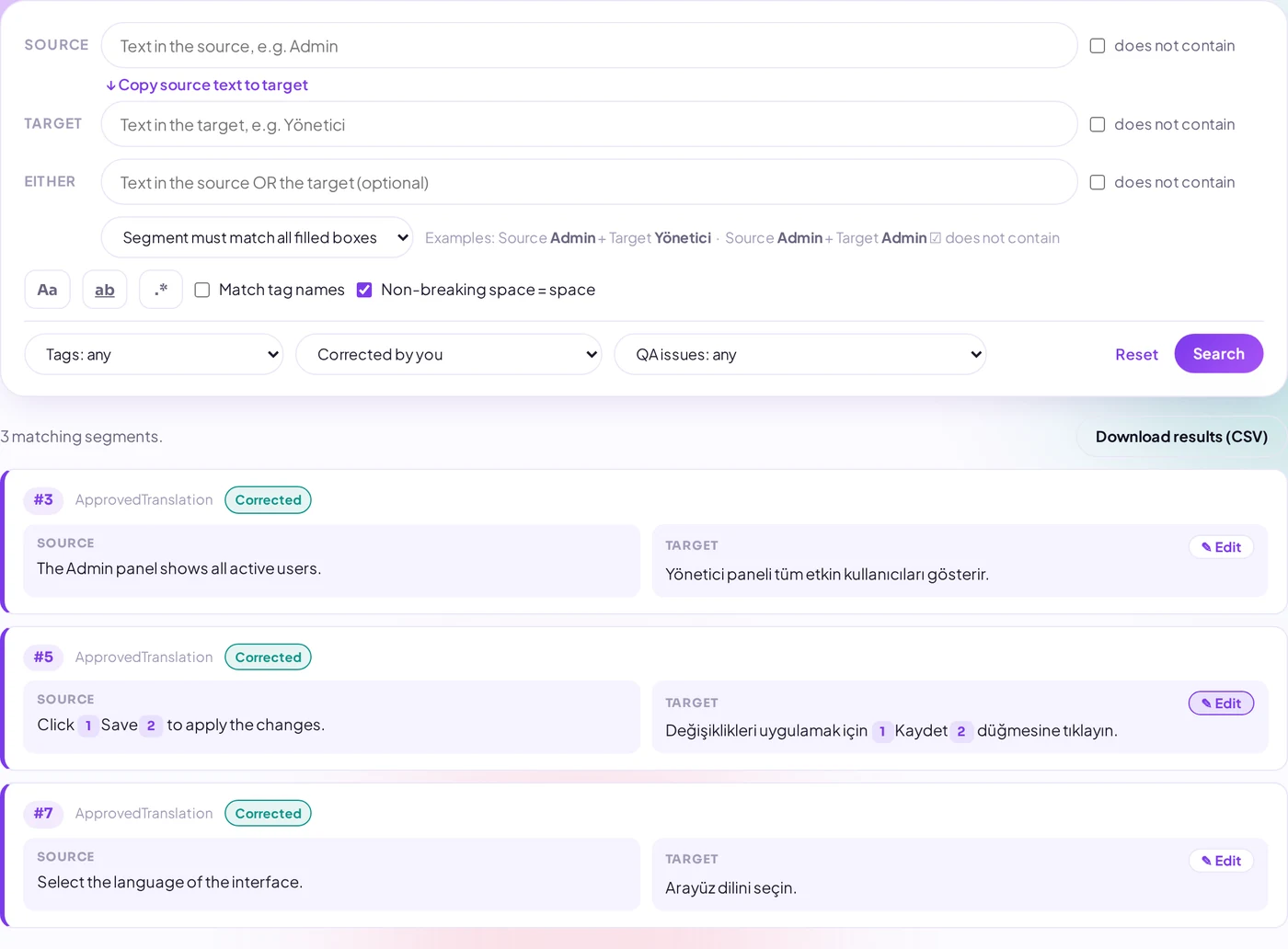
Corrected segments carry a Corrected badge, and the search has a “Corrected by you” filter so you can double-check everything you changed before delivery. Then download the corrected SDLXLIFF (several files come as a ZIP) or, if you uploaded a Trados package, the corrected .sdlrpx return package that Trados Studio can import directly.
Correction in QA tools compared
| Linigu QA Checker | Xbench | Verifika | Trados Studio QA Checker | |
|---|---|---|---|---|
| Edit the target from the QA results | Yes, inline in every issue and search result | No — read-only; Edit Segment jumps to your CAT tool | Yes, built-in editor | Yes, by jumping to the segment in the Studio editor |
| Where the fix is saved | Directly in the SDLXLIFF / return package | In the CAT tool, not by Xbench | Back into the bilingual files | In the Studio project |
| Segment status after the fix | Set to Approved automatically | Whatever you set in the CAT tool | Depends on settings | Whatever you confirm in Studio |
| Report after a fix | Refreshes automatically after every save | Run the check again | Re-check in Verifika | Run Verify (F8) again |
| Tag protection while editing | Protected tags, pairing and nesting validated | — | Yes | Yes |
| Deliverable | Corrected SDLXLIFF or .sdlrpx download | — | Corrected files | Return package from Studio |
| Needs | A browser (Windows, Mac, Linux) | Windows + CAT tool for fixing | Windows, paid licence | Trados Studio licence (Windows) |
Based on publicly available product information, September 2026. Features change — please check the vendors’ websites. Xbench is a trademark of ApSIC, Verifika of Palex, Trados of RWS, memoQ of memoQ Ltd.
Verifika and the Trados QA Checker can also fix errors, but both are Windows desktop software with a paid licence. Xbench remains a superb finder with a very flexible search — but it leaves the fixing to you. The Linigu QA Checker combines both halves in one browser tab.
Safety features you would expect from a CAT tool
- Locked segments stay locked and cannot be edited.
- Trados locked-content references keep their target IDs, so the file opens cleanly in Studio.
- Tracked changes in a segment are accepted when you save it — the editor warns you first.
- Conflict protection: if the same report is open in two tabs, an outdated save is refused instead of overwriting newer work.
- No AI, no training: your text is only processed by fixed rules on our server and deleted automatically after 24 hours.
Frequently asked questions
Can I edit an SDLXLIFF file online without Trados?
Yes. Upload the SDLXLIFF, SDLPPX or SDLRPX to the QA Checker, click Edit on any target and download the corrected file. For full translation work, the Linigu SDL translator offers a complete online editor.
Can Xbench edit or correct segments?
Xbench does not modify files. It lists issues and can open the segment in a supported CAT tool, where you make the correction.
Are my corrections marked in the file?
Yes. Each corrected segment is saved as ApprovedTranslation with an interactive origin, just like a segment you confirm in Trados Studio.
More on the QA Checker: how to check SDLXLIFF and return packages online and Linigu vs Xbench, Verifika and Trados QA: the full comparison. Ready to try? Open the QA Checker and fix your first segment.