A surprising number of documents are only pictures of text: a contract that went through the office scanner, a certificate copy, a manual photographed with a phone, a fax saved as PDF. A normal translation tool opens such a file and finds — nothing. There is no text to translate, only pixels.
Linigu Translator now reads these files with OCR (optical character recognition). It recognises the text on every scanned page, translates it with AI and places the translation back on the page, so the result still looks like your original. You see the price and a preview before anything is charged.
Which files are read with OCR?
OCR starts automatically whenever a page has no text layer. You do not have to switch anything on.
| File | Typical example | What happens |
|---|---|---|
| Scanned PDF | Office scanner, fax, archive copy | Every page is recognised, translated and rebuilt as a PDF |
| Mixed PDF | Digital report with a scanned appendix | Text pages are translated directly, only the scanned pages go through OCR |
| JPG, PNG, WebP, BMP | Phone photo, screenshot | The image becomes a PDF page, then it is recognised and translated |
| TIFF (also multi-page) | Scans from a document archive | Each frame becomes one page of the translated PDF |
Digital PDFs with a text layer are translated without OCR — see the guide to translating Word, Excel, PowerPoint and PDF.
Step by step: from scan to translation
1. Upload the scan or photo
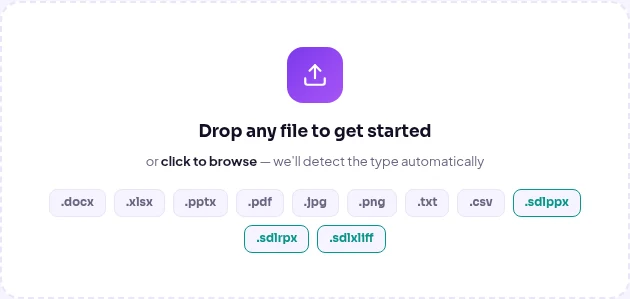
Open the translator and drop the file into the upload box. Besides Word, Excel, PowerPoint and PDF it now accepts JPG and PNG images as well as TIFF, WebP and BMP.
2. Know the price first
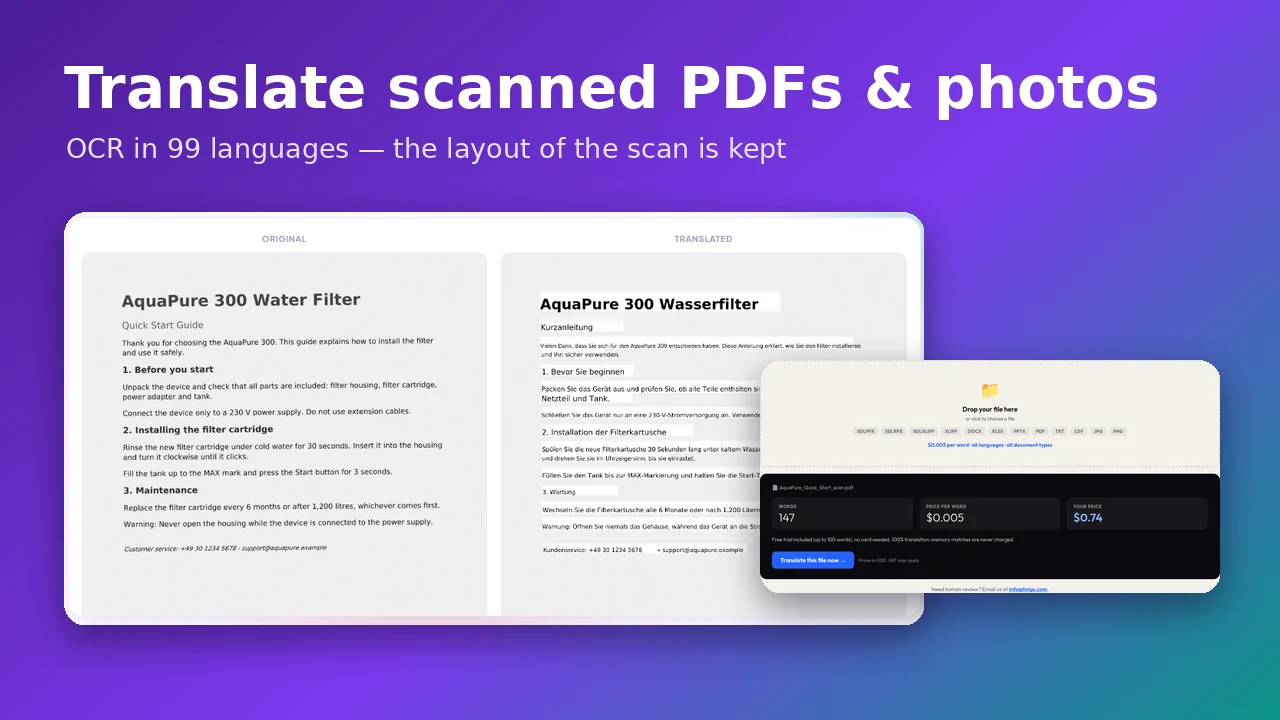
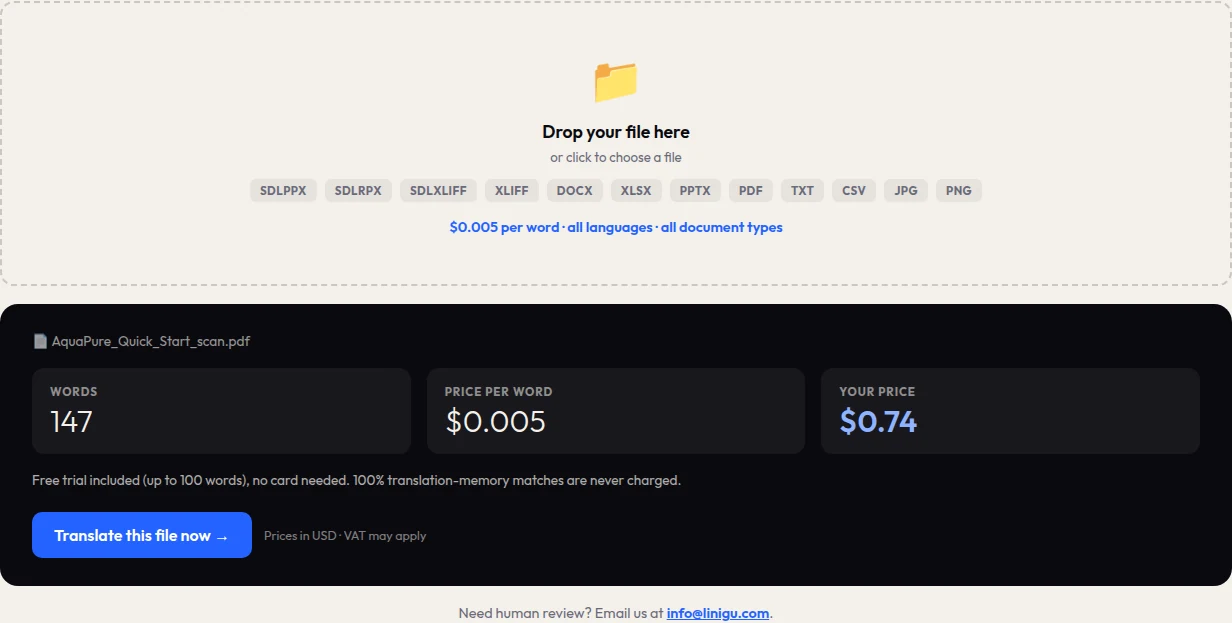
The quote box on the linigu.com homepage reads scans too. Our one-page quick start guide was recognised as 147 words, so the translation costs 147 × $0.005 = $0.74. No sign-up is needed for a quote.
3. Watch the OCR preview
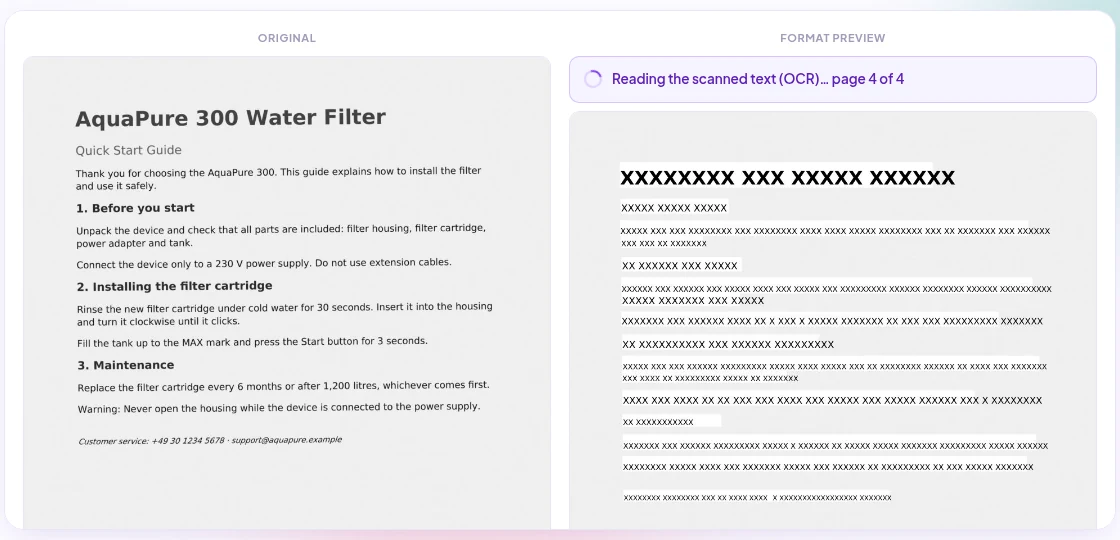
After the upload, the original pages appear on the left. On the right, each scanned page is recognised one after the other, and a progress bar shows which page is being read. Large scans take a few seconds per page, and you can follow the progress the whole time.
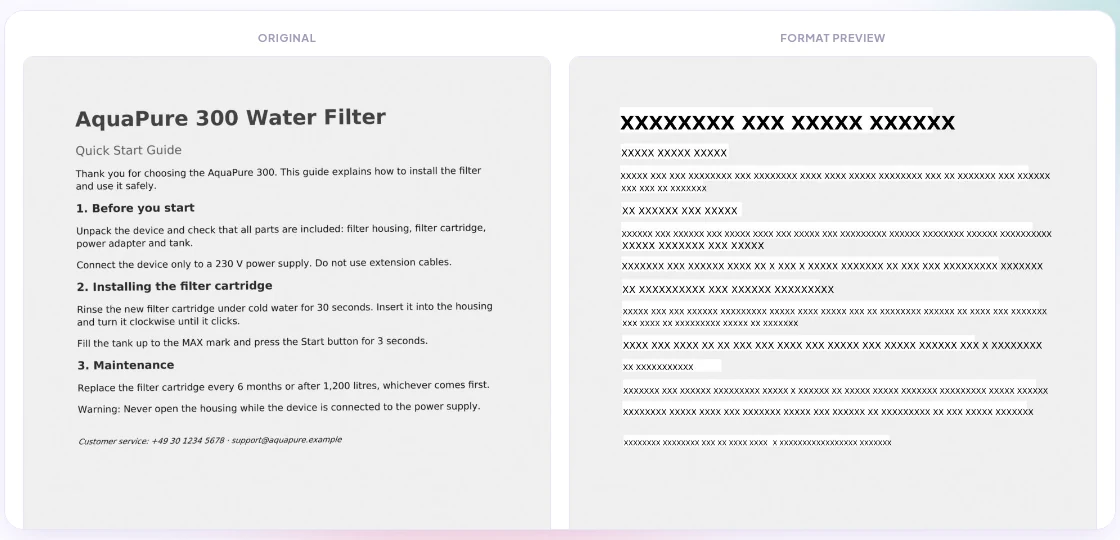
The finished format preview blanks out every recognised word as XXXXX. It shows exactly where the translation will be written — before you choose a language and before anything is billed. If a block is missing here, the OCR did not see it, and you know before you pay.
4. Choose the languages
Select the target language from 118 languages and variants. The source language matters for OCR: if you choose it, the scan is read with that language’s own model, so umlauts, accents and letters like Turkish “ı” come out right. “Detect automatically” works well for Western European languages; for Russian, Arabic, Chinese, Hindi and other scripts, pick the language yourself.
5. Translate and download
Click Translate document. The recognised text is translated, the original words are covered and the translation is written into the same positions, in a matching size. You get a PDF that keeps the page, the images and the layout of the scan.
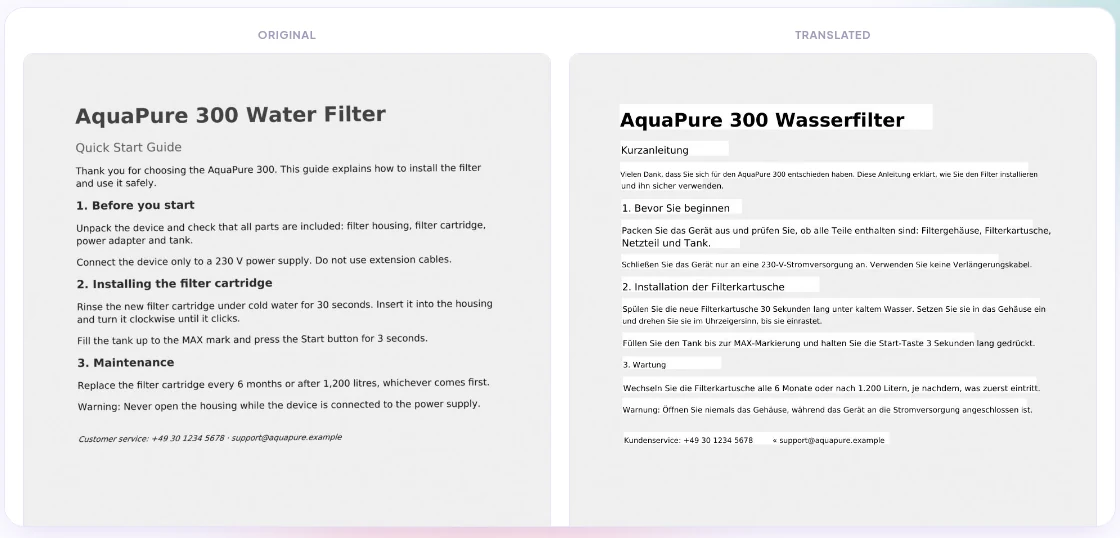
Photos from your phone work too
No scanner nearby? Take a photo of the page and upload the JPG. Linigu sizes the photo as a normal page, so even a large camera image is processed quickly. The preview below shows the same quick start guide, photographed instead of scanned.
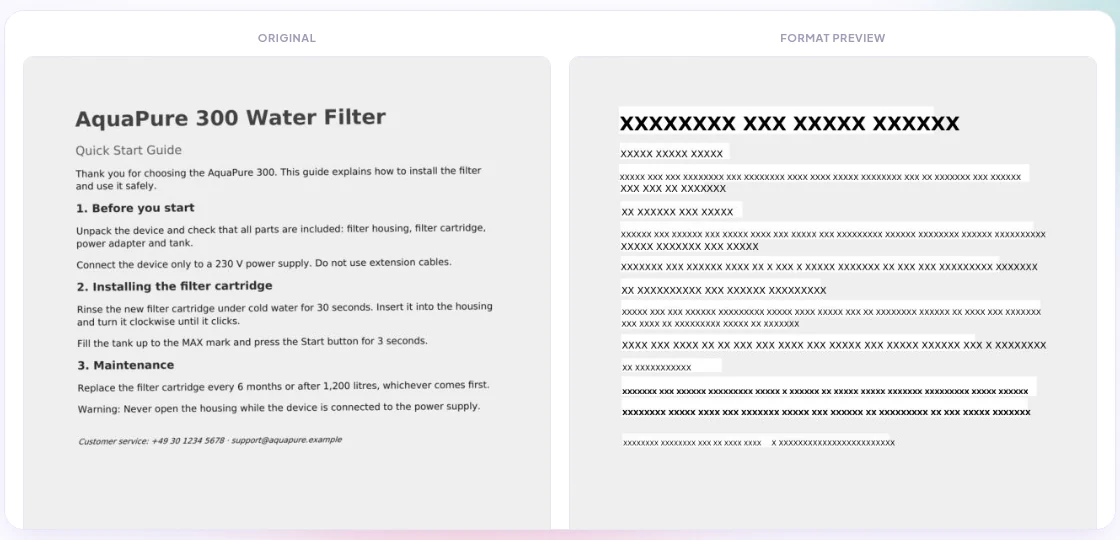
Tips for the best OCR result
- Resolution: scan at 300 dpi. Lower resolutions make small print hard to read.
- Straight and flat: photograph the page from directly above, in good light, without shadows or curved pages.
- Choose the source language for any language that is not Western European, and always for non-Latin scripts.
- Check numbers and names in the result. OCR can confuse similar characters (0/O, 1/l), and a wrong digit in a contract matters.
- Printed text only: handwriting is not recognised reliably.
Good to know
- Up to 50 scanned pages per file are recognised. Digital pages in the same PDF do not count towards this limit.
- The homepage quote reads up to 20 scanned pages, which is enough to estimate most documents.
- The translation is placed into the recognised text areas. Very complex tables, stamps and handwritten notes are kept as they are, not translated.
- Files are processed for your session only and deleted automatically after 48 hours. The scan itself is never sent to the AI model, only the recognised text is translated.
What does it cost?
Scans cost the same as every other document: $0.005 per word in every language, with no extra fee for OCR. The first 100 words are free, top-ups start at $10 and the balance never expires.
Frequently asked questions
Can I translate a scanned PDF for free?
Yes, the free trial covers the first 100 words, enough for a short letter or certificate. The quote and the format preview are always free.
Which languages can the OCR read?
The text recognition (Tesseract) knows 99 languages, including Latin, Cyrillic, Greek, Arabic, Hebrew, Chinese, Japanese, Korean, Hindi and other Indian scripts. You can translate into 118 languages and variants.
Can I get a certified translation of a scanned document?
The online translator produces AI translations. For notarised or certified translations of scans — for example certificates or official records — email us at info@linigu.com and we will send you a personal quote.
How do I check a translation I already have as a scan?
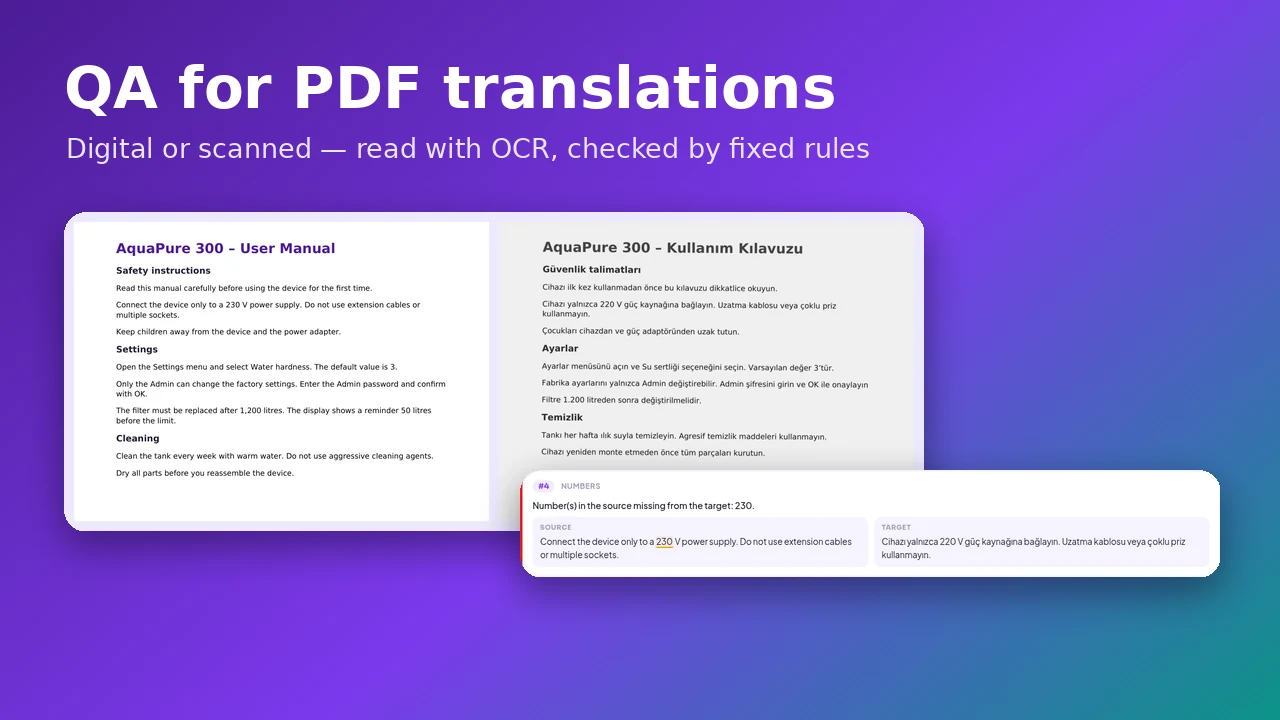
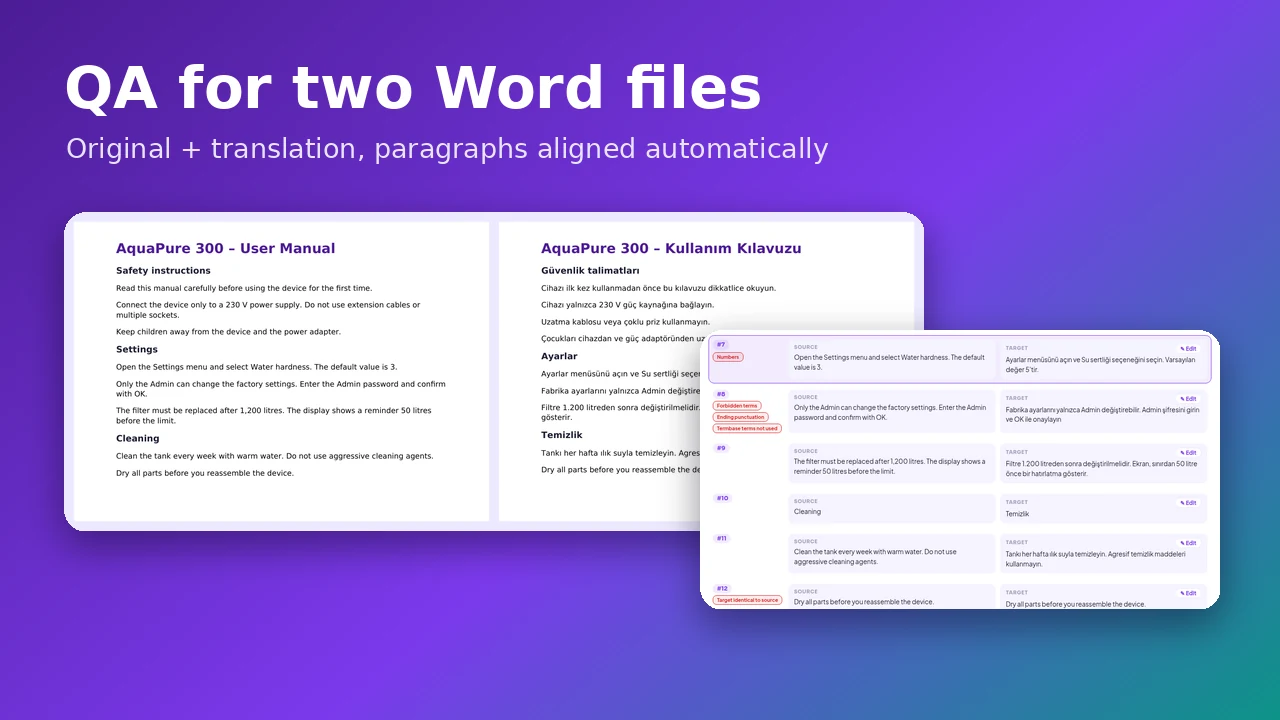
Use the QA Checker: it compares a scanned or digital PDF translation with its original. Read how to check PDF translations, even scanned ones.
Ready to try it? Upload a scan or photo to Linigu Translator and see the format preview in seconds. For every other format, read how to translate every file format online.