Not every reviewer gets the SDLXLIFF. Very often the review copy is a bilingual Word file: a table with the source on the left and the translation on the right, exported from Trados Studio, memoQ or Phrase, or built by hand by a client. It is easy to read and comment on — but until now, a QA tool could not check it. You had to go back to the CAT file or read every row yourself.
The Linigu QA Checker now reads bilingual Word files directly. It finds the source and target columns, runs the same rule-based checks as for Trados files — numbers, punctuation, terminology, spelling, consistency and more — and lets you correct the translation right in the report. Then you download the corrected Word file, with the table and formatting unchanged.
What is a bilingual Word file?
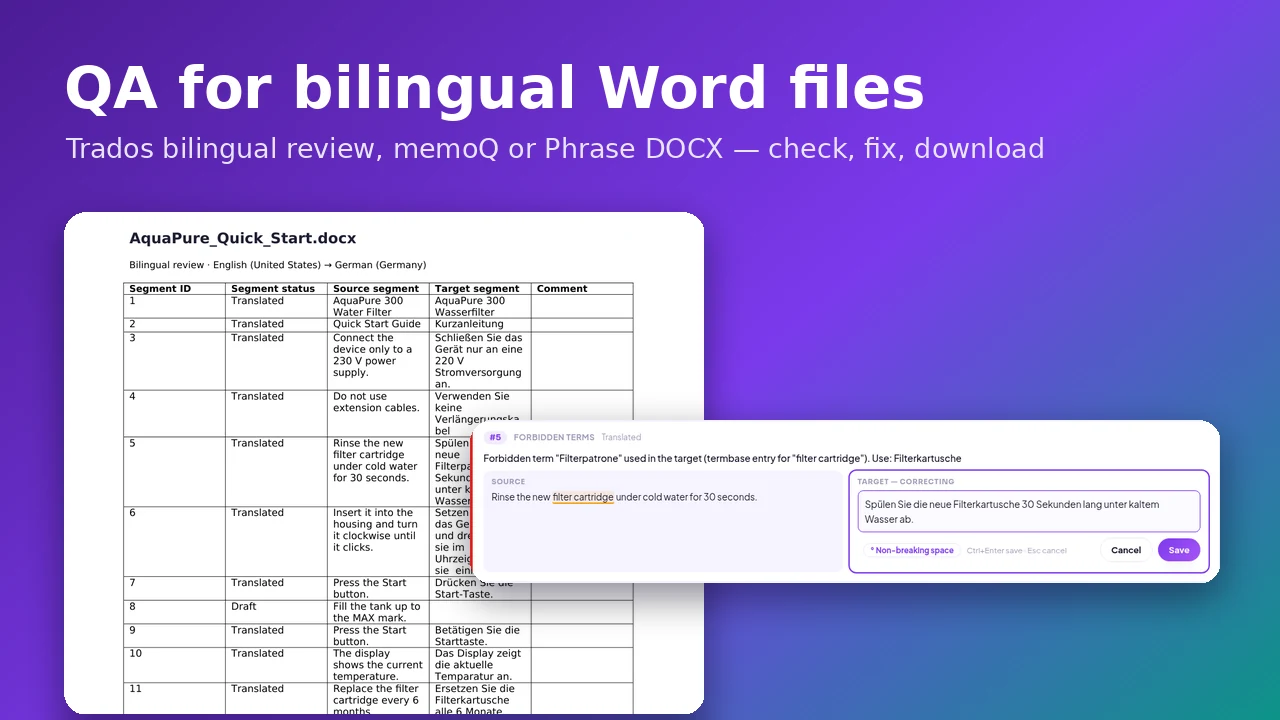
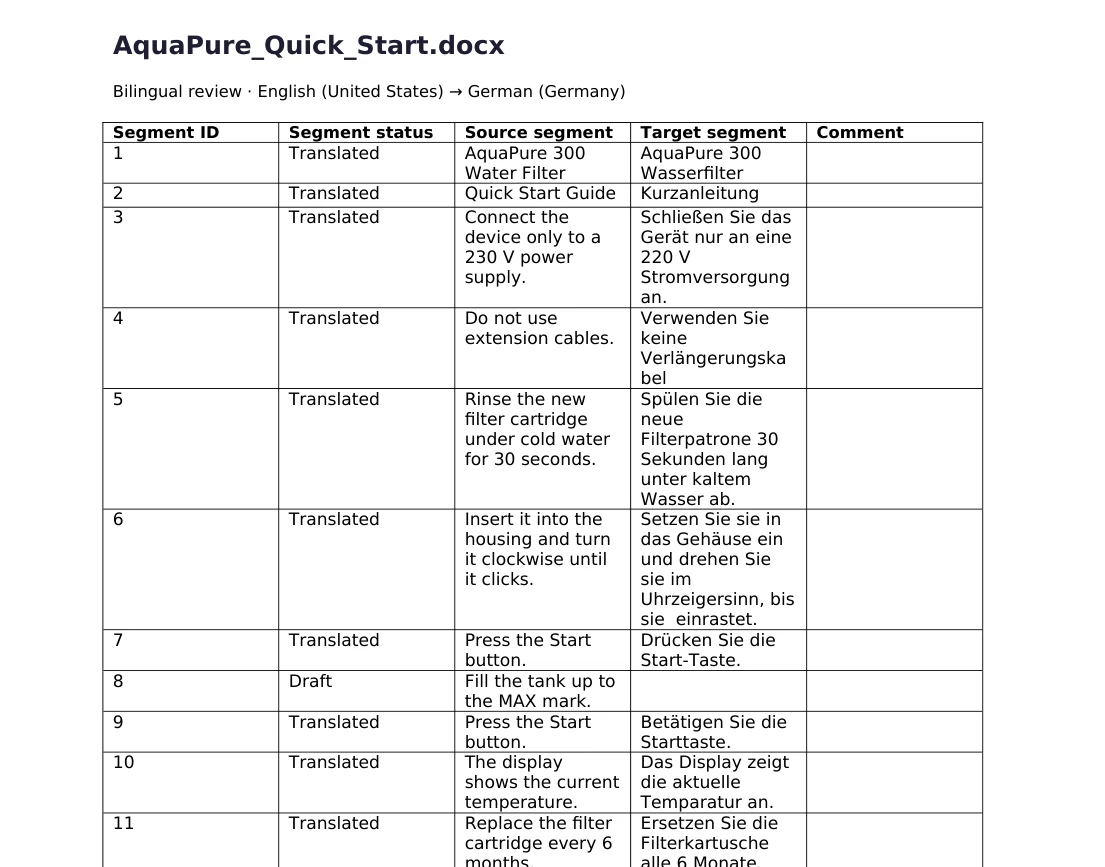
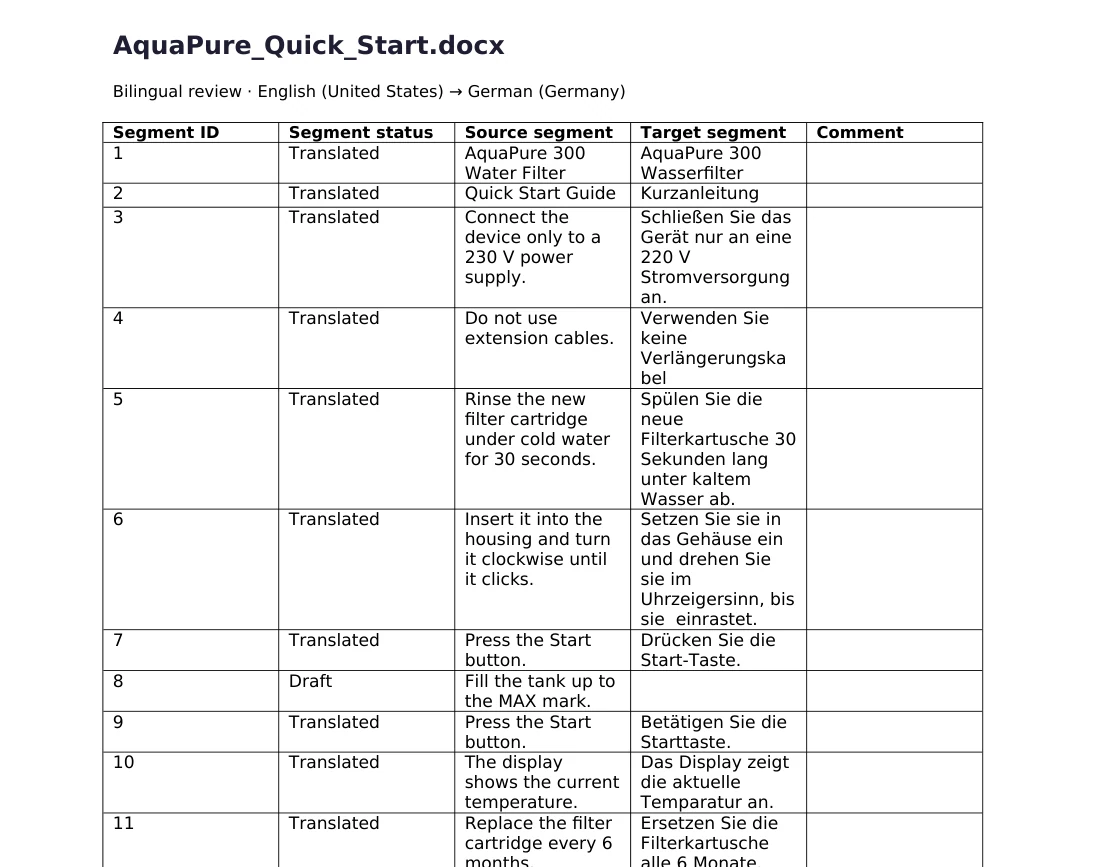
A bilingual Word file is a review document: one row per segment, with the original and the translation side by side, often with a segment number, a status and a comment column. Here is the example we use in this article — an English quick start guide translated into German, exported in the Trados “bilingual review” layout:
Which layouts are supported?
| Source of the file | Typical columns | Supported |
|---|---|---|
| Trados Studio – Export for bilingual review | Segment ID, status, source, target, comment | Yes |
| memoQ bilingual DOCX | ID, source language, target language, comment, status | Yes |
| Phrase (Memsource) bilingual DOCX | ID, source, target and further columns | Yes |
| Your own or the client’s table | Any two columns: source and translation | Yes |
The checker finds the right columns by their headers — Source/Target, their equivalents in other languages, language names like “English (United States)” or codes like de-DE. If a table has no header, the two columns with the most text are used, the left one as the source. Segment numbers and status columns are recognised as well and shown in the report.
How to check a bilingual Word file
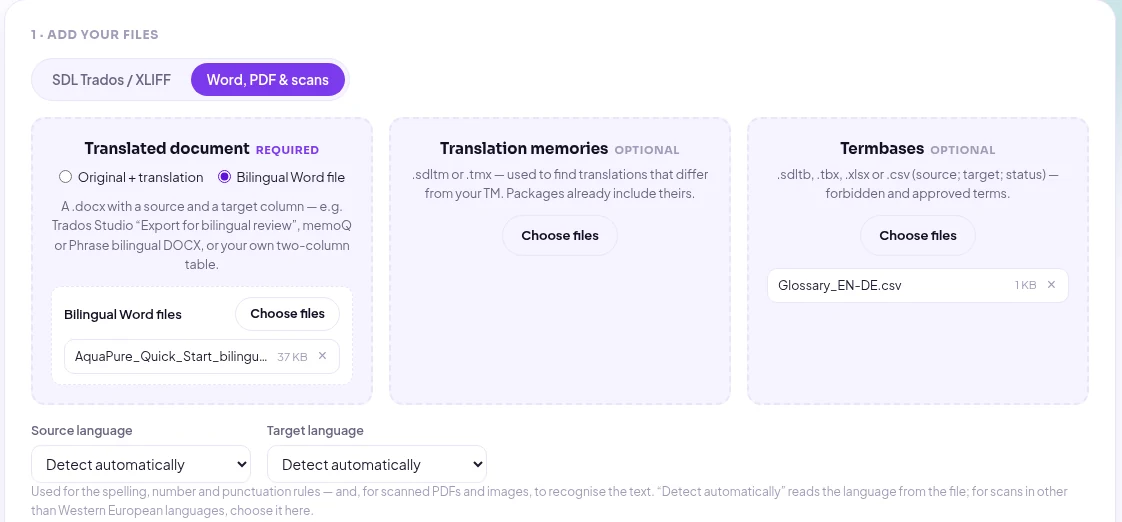
1. Choose “Bilingual Word file” and add your files
Open the QA Checker, switch to the Word, PDF & scans tab and select Bilingual Word file. Add one or more .docx files. You can add a termbase (.sdltb, .tbx, .xlsx or .csv) and a translation memory (.sdltm or .tmx) as usual — here we add a small English–German glossary that marks “Filterpatrone” as forbidden and “Filterkartusche” as the approved term.
2. Check the languages
The languages are read from the column headers, the text itself and the Word language settings. They decide which spelling dictionary and which punctuation rules apply. If you want to be sure, choose the source and target language in the two drop-down menus.
3. Run the check
Choose the checks (the defaults are a good start) and click Run QA check. A few seconds later you see the summary: 14 segments checked, 4 errors and 8 warnings in our example, and every issue as a card with the source, the target and the problem highlighted.
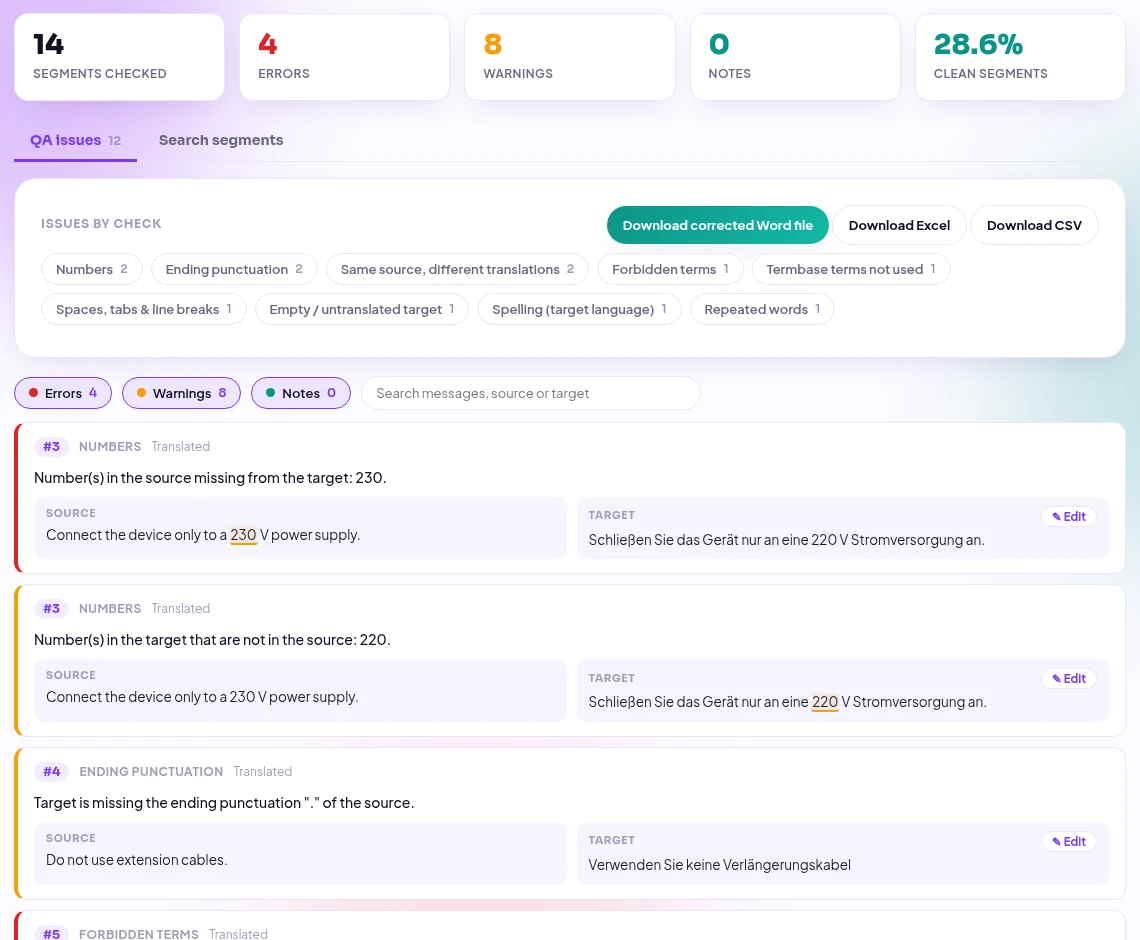
What the checker found in our example
We hid nine typical mistakes in the 14-row table. The checker found all of them:
| Row | Check | What was wrong |
|---|---|---|
| #3 | Numbers | “230 V” became “220 V” — a safety-relevant error |
| #4, #12 | Ending punctuation | A missing full stop, and an exclamation mark where the source has a full stop |
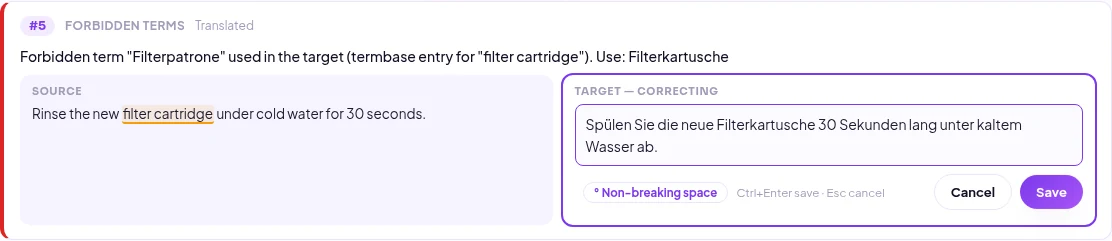
| #5 | Forbidden term | “Filterpatrone” used instead of the approved “Filterkartusche” |
| #6 | Spaces | A double space before “einrastet” |
| #7, #9 | Inconsistency | “Press the Start button.” translated in two different ways |
| #8 | Empty target | A row in Draft status that was never translated |
| #10 | Spelling | “Temparatur” instead of “Temperatur” |
| #13 | Repeated word | “die die” |
Correct German like “drehen Sie sie” (“turn it”) is not reported as a repeated word — a case difference in mid-sentence is grammar, not a typo.

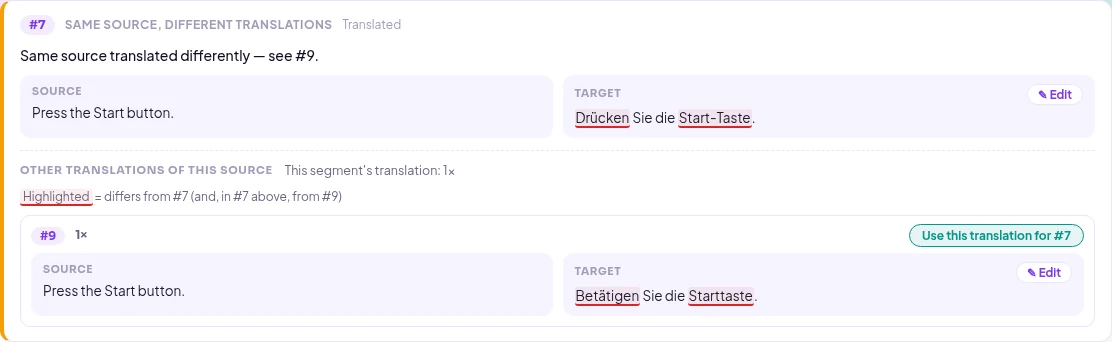
For inconsistencies the checker shows every other translation of the same source with the differences highlighted. One click on Use this translation copies one version into the other row.
Spelling is checked with Hunspell dictionaries for more than 50 languages, with suggestions:

Fix the translation in the report and download the Word file
Click ✎ Edit on any target, correct the text and press Ctrl+Enter (or Save). The change is written into the target cell of your Word file at once, and the whole report is checked again — fixed issues disappear.
When you are done, click Download corrected Word file. Only the target cells you edited change; the table, the other columns, the comments and the formatting stay as they were. The first text run of a cell keeps its formatting.
You can then send the file back to the translator or project manager, or import it into your CAT tool — in Trados Studio with the batch task Update from Bilingual Review, in memoQ and Phrase with their bilingual import.
Good to know
- No tag checks: bilingual Word files show tags as text or styles, so tag checks are skipped. For full tag checks use the SDLXLIFF or return package.
- Several files at once: up to 30 bilingual files per check, each listed separately in the report.
- Status and comments: the status column is shown with every issue; comment columns are never changed.
- Only .docx: save .doc or .rtf files (for example memoQ’s two-column RTF) as .docx in Word first.
- No AI: every check is a fixed rule running on our server. Files and reports are deleted automatically after 24 hours.
Frequently asked questions
Can I check a Trados bilingual review file without Trados Studio?
Yes. Upload the .docx you exported with Export for bilingual review, check it, correct it in the browser and download it again. You only need Trados to import it back into the project.
My table has no header row. Does that work?
Yes. The two columns with the most text are used, the left one as the source. Choose the languages in the drop-down menus so that spelling and punctuation rules match.
Can I compare two separate Word documents instead?
Yes — if the original and the translation are two files, read how to check two separate Word files. For PDF translations see QA for PDF translations.
Is the QA Checker free?
Yes. You only need a free account; there is no limit on checks.
Try it with your next review file: open the QA Checker. More about fixing errors directly in the report: find it, fix it, download it.