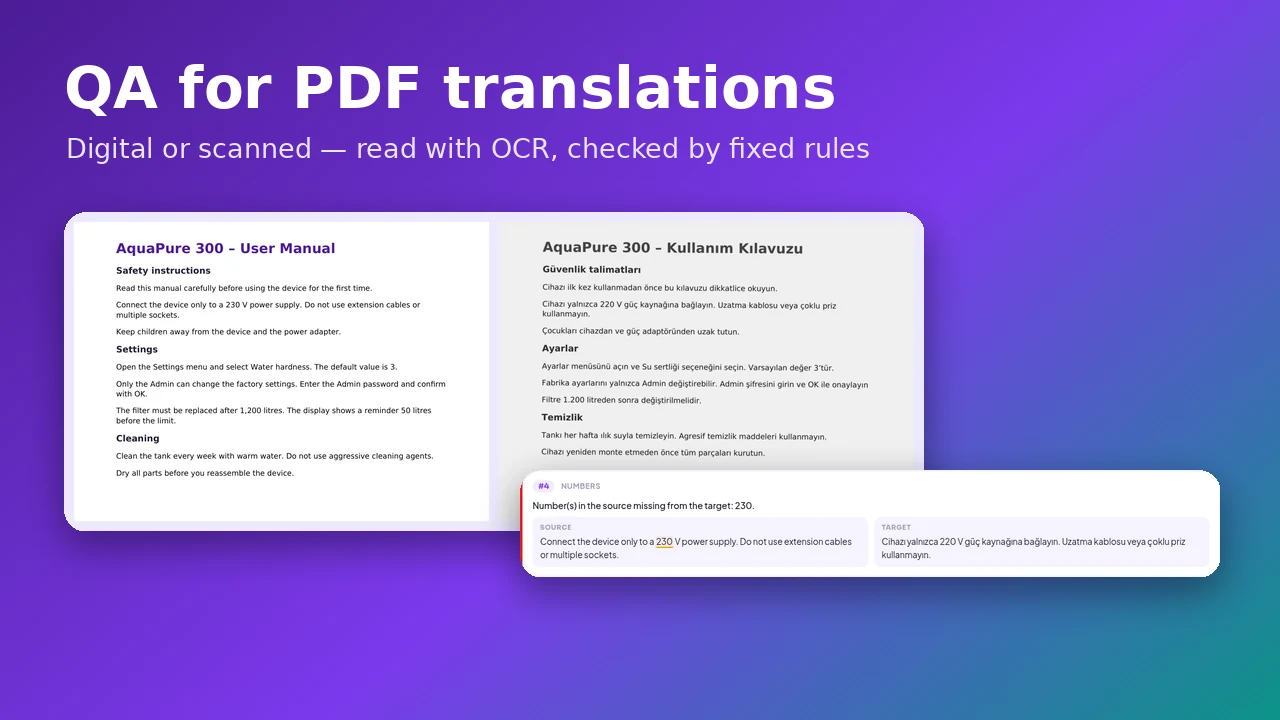
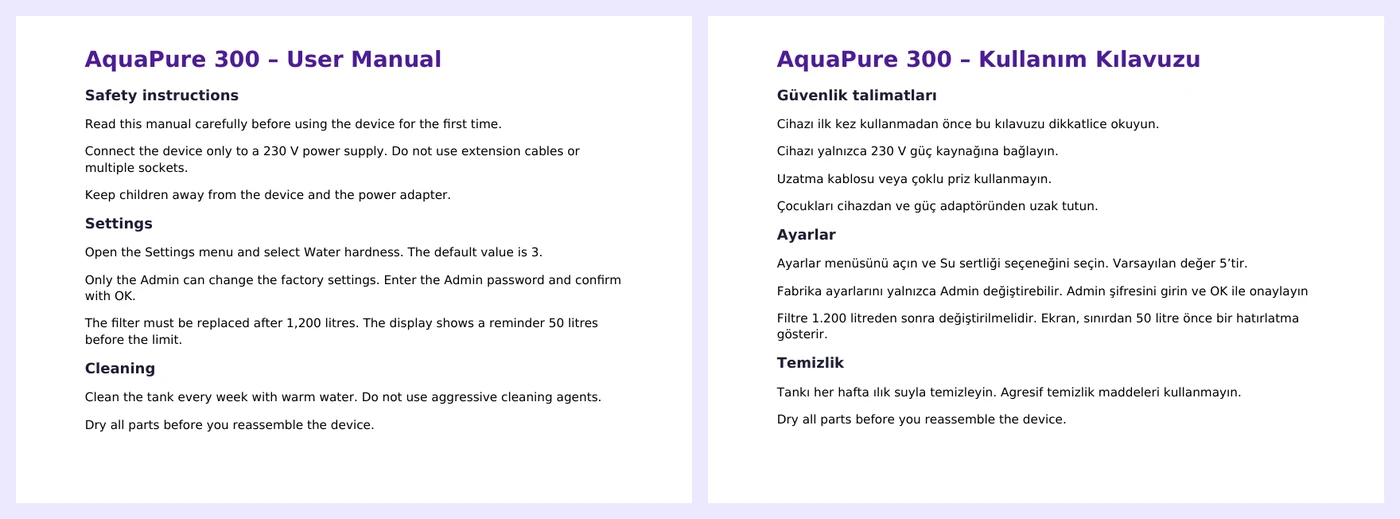
Not every translation comes out of a CAT tool. Many are delivered as an ordinary Word document: translated directly in Word, by a colleague, by the client’s own staff or by a machine translation workflow. To review it, you put the original and the translation side by side and compare them paragraph by paragraph — numbers, terms, missing sentences, typos. It is slow, and it is easy to miss something.
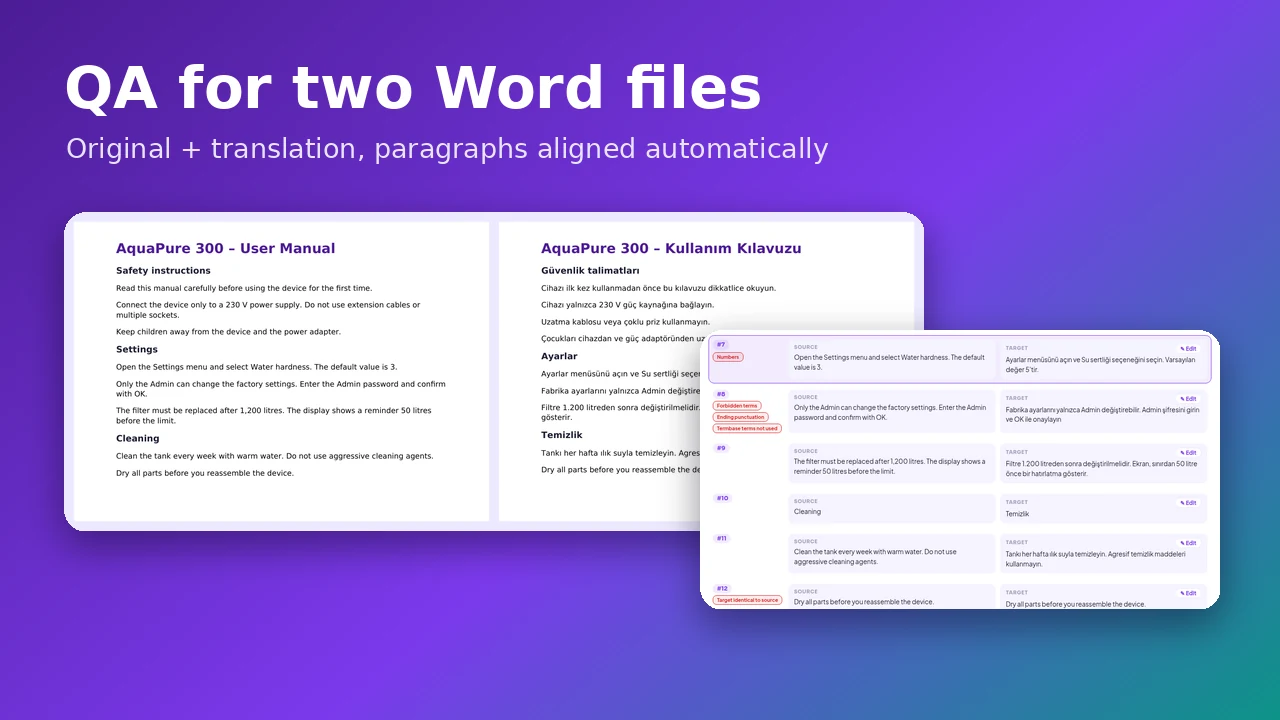
The Linigu QA Checker now takes the two files as they are: upload the original and the translation as two .docx files. It pairs their paragraphs automatically, runs all rule-based checks on every pair and lets you correct the translation directly in the report. Our example: an English user manual and its Turkish translation.
How the two files are paired
Both documents are read in reading order — paragraphs, headings, table cells and text boxes. Then each paragraph of the original is matched with its translation:
- If both files have the same number of paragraphs, they are paired one to one.
- If the numbers differ, an alignment based on paragraph length decides which paragraphs belong together. It also handles a paragraph that the translator split in two or merged, as well as paragraphs that are missing or added.
- Numbers act as anchors: paragraphs with the same figures are pulled together, different figures push them apart.
- The report always tells you what happened, for example “12 paragraphs and 13 paragraphs, aligned automatically, 1 split or merged paragraph”.
The length-based method goes back to Gale and Church, “A Program for Aligning Sentences in Bilingual Corpora” (Computational Linguistics, 1993), still a standard in translation technology.
Step by step
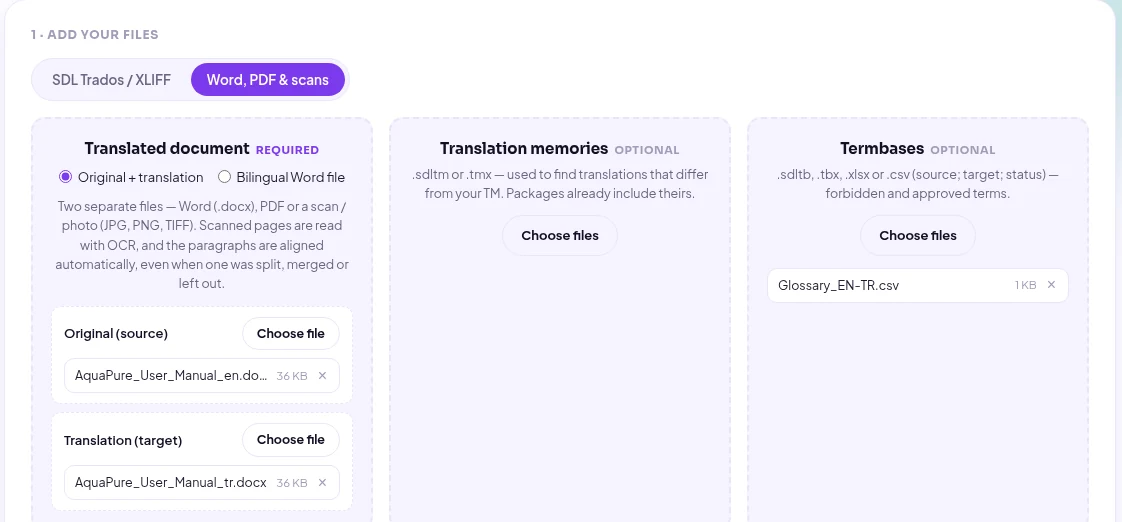
1. Upload the original and the translation
Open the QA Checker, go to the Word, PDF & scans tab and keep Original + translation selected. Put the source document into Original (source) and the translated one into Translation (target). A termbase and a translation memory are optional; here we add an English–Turkish glossary in which “Admin” must be translated as “Yönetici”.
2. Set the languages
“Detect automatically” reads the language from the text and from the Word file. For the best spelling and punctuation checks you can choose it yourself — here we set the target language to Turkish.
3. Run the check
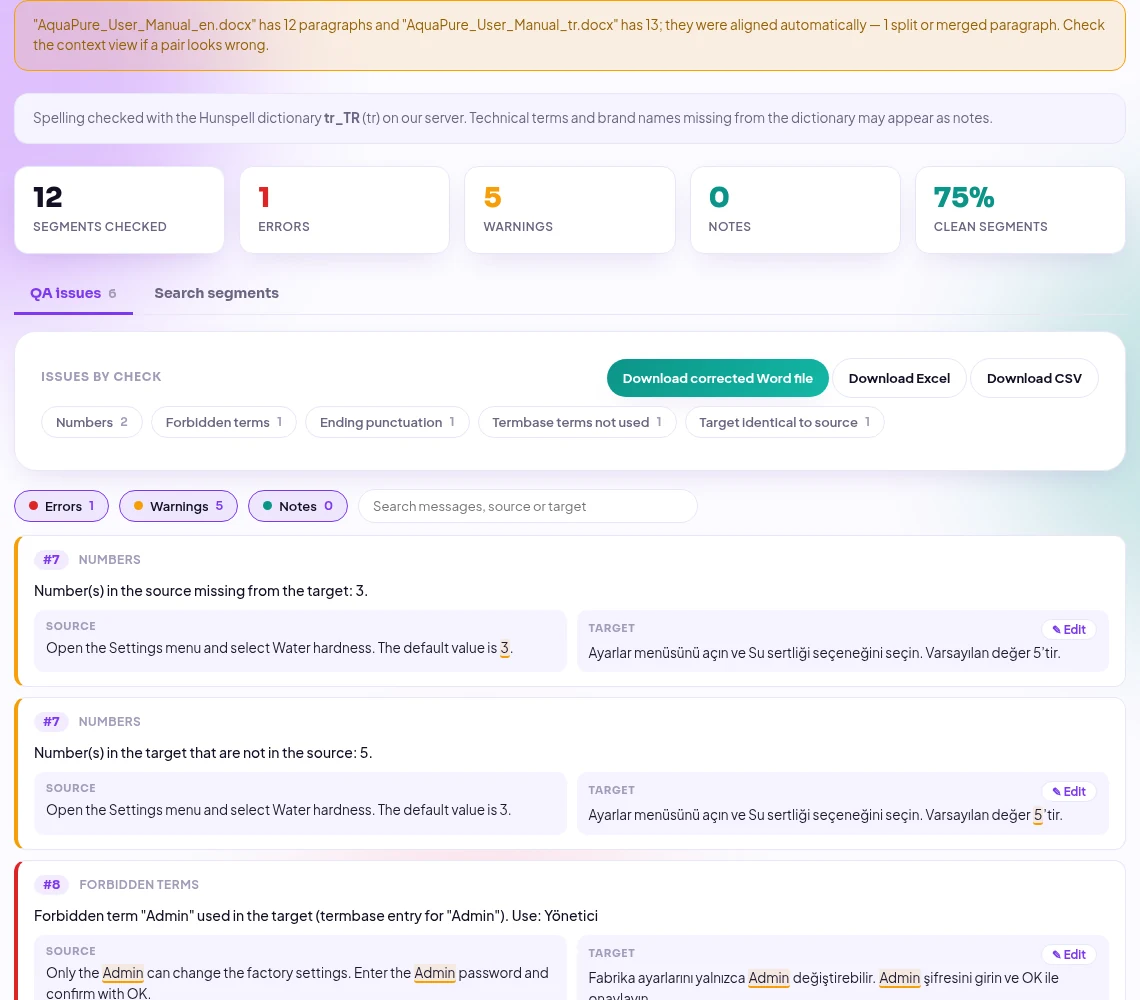
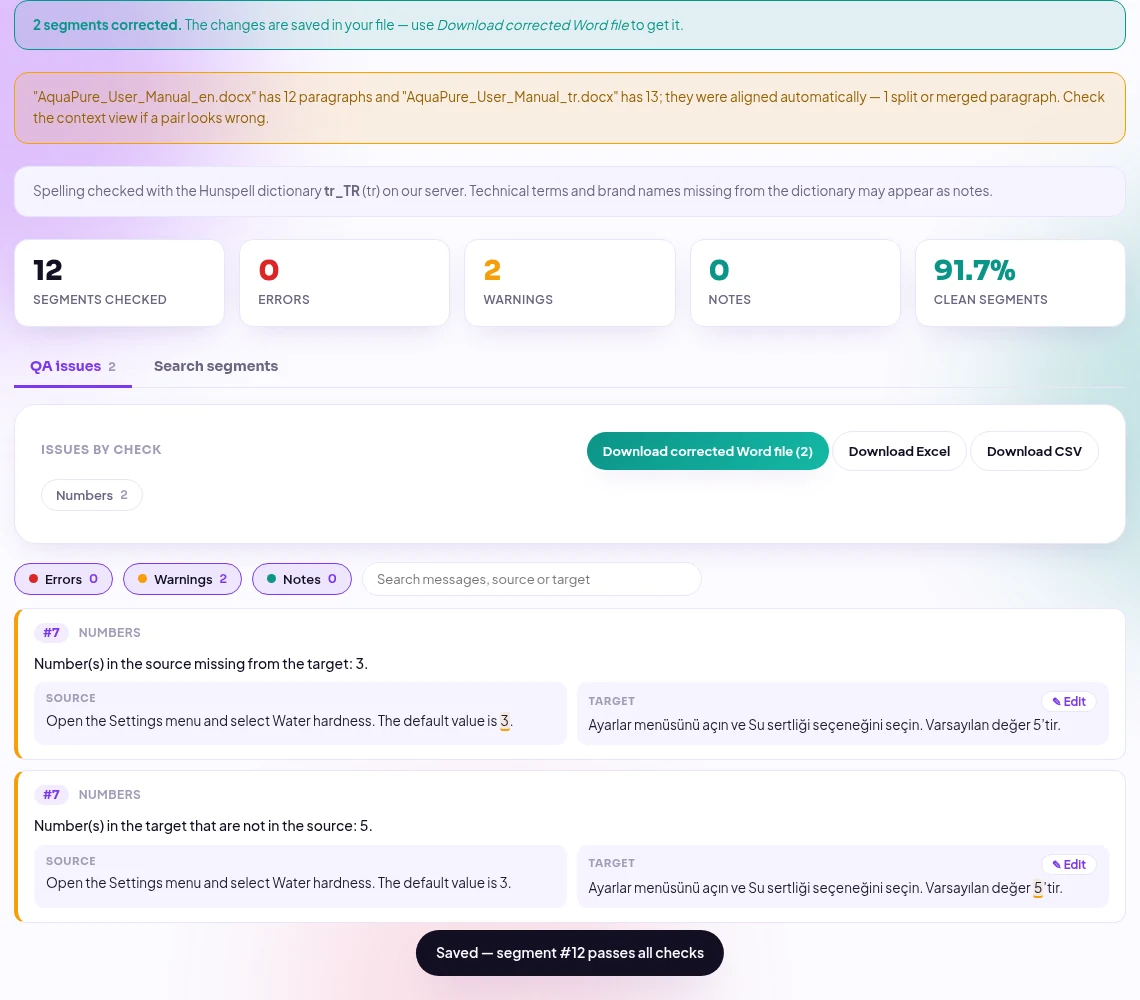
Click Run QA check. The report starts with a note on the alignment — in our example the original has 12 paragraphs and the translation 13, because the translator split one paragraph in two. The issues follow, grouped by check.
What the checker found
Our translation contains five typical mistakes. All of them were found:
| Paragraph | Check | What was wrong |
|---|---|---|
| #4 | Alignment | One English paragraph translated as two Turkish paragraphs — recognised and paired correctly, no false alarm |
| #7 | Numbers | The default value “3” became “5” |
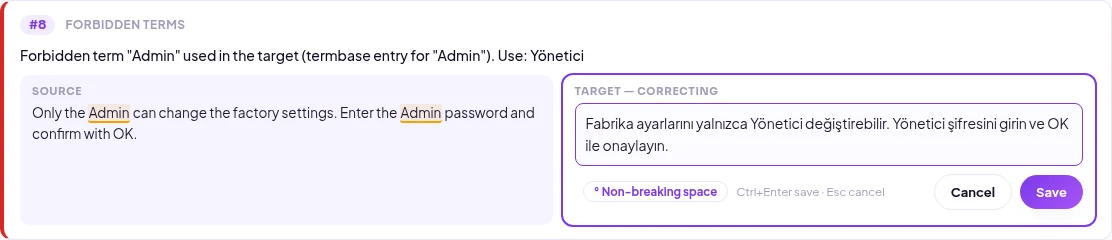
| #8 | Forbidden term | “Admin” used instead of the approved “Yönetici” |
| #8 | Ending punctuation | The full stop at the end is missing |
| #12 | Target identical to source | The last paragraph was left in English |
An untranslated paragraph is easy to overlook when you read two long documents. The checker reports it because the target is identical to the source:

Check the pairing in the context view
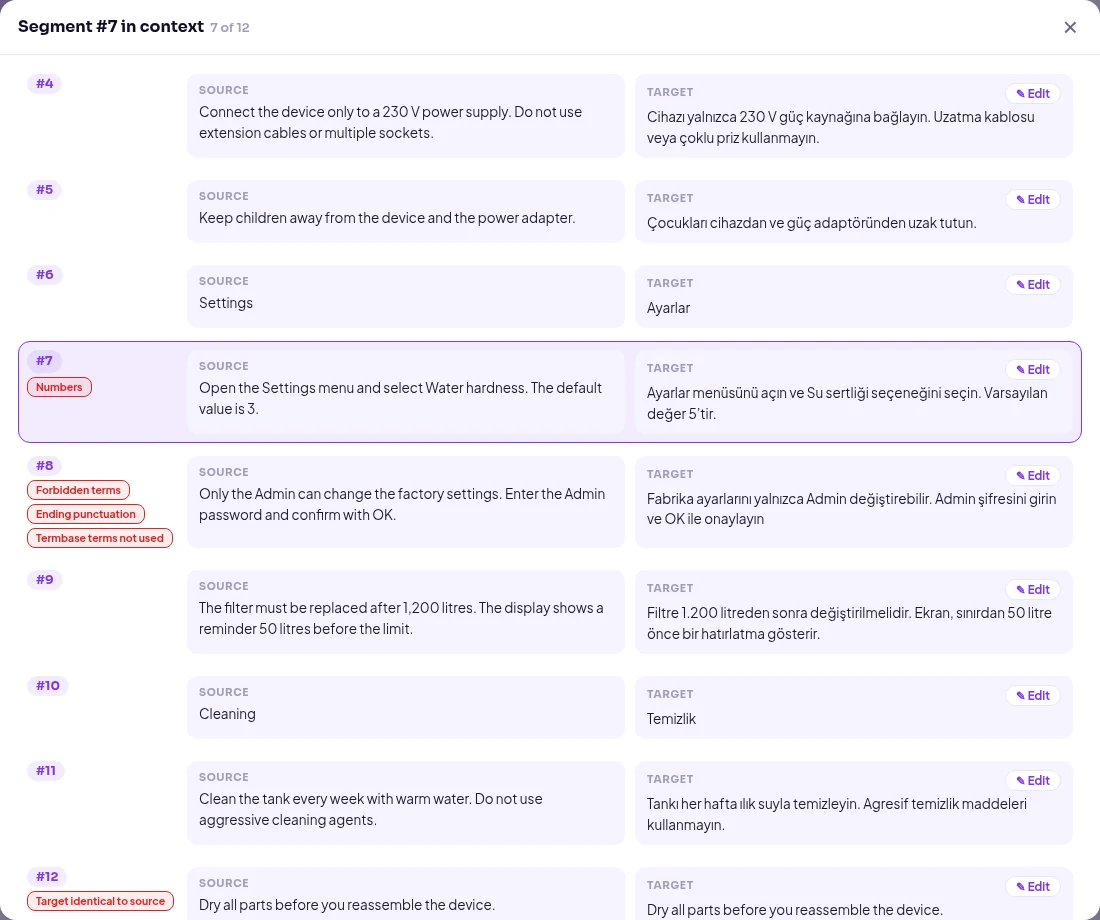
Click any paragraph number to see it in context, with the paragraphs before and after it. This is the quickest way to confirm that the alignment is right — here you can see paragraph 4, which the translator split in two, shown again as one pair:
Fix the translation and download the Word file
Click ✎ Edit, correct the text and save with Ctrl+Enter. The change is written into the translated Word file at once and the report is checked again:
After two corrections the errors are gone and 91.7% of the paragraphs are clean. Download corrected Word file gives you the translation with your corrections; the formatting of each paragraph is kept. If you edit a pair that the translator split into two paragraphs, the corrected text is placed in the first of them and the second is emptied.
Good to know
- Alignment is automatic, not magic: it relies on paragraph length and numbers. If a translator both split and left out paragraphs in the same passage, a pair can shift — the context view shows it at a glance.
- Same structure works best: a translation that keeps the paragraph structure of the original is paired one to one, without any guesswork.
- Main text only: paragraphs, tables and text boxes are checked; headers, footers and footnotes are not.
- Tracked changes: inserted text is checked and deleted text is ignored. When you save a correction, the tracked changes in that paragraph are accepted.
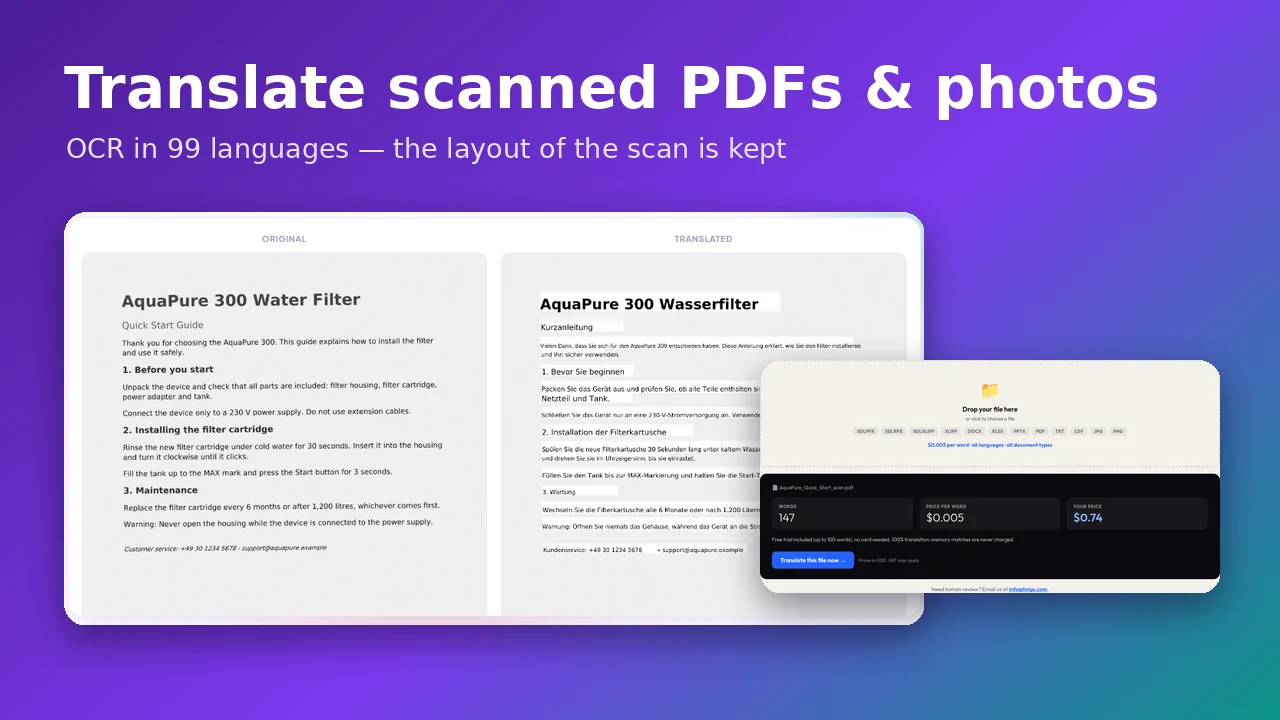
- Only .docx: save .doc files as .docx first. For PDF or scanned translations see QA for PDF translations.
Frequently asked questions
Can I compare two Word documents for translation errors without a CAT tool?
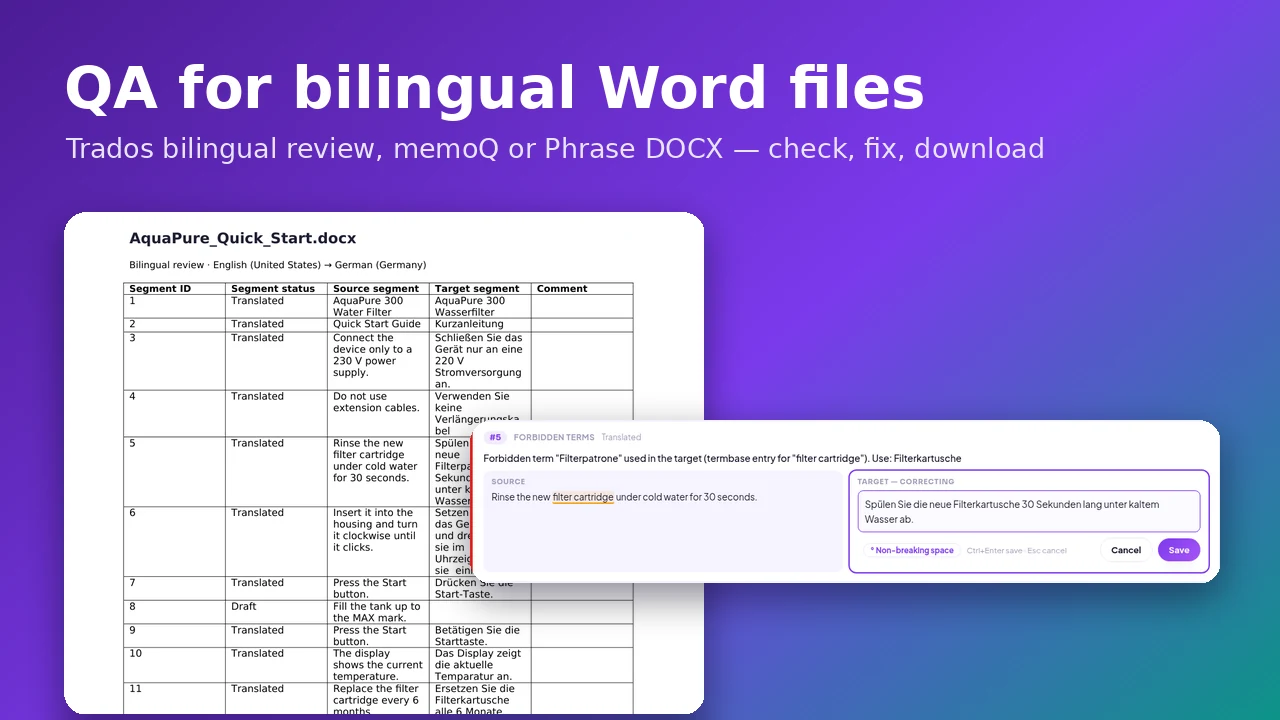
Yes. Upload the original and the translation to the QA Checker — no Trados, memoQ or other CAT tool is needed, and the files do not have to be prepared in any way.
What if my translation is a bilingual table instead?
Then choose Bilingual Word file — read how to check bilingual Word files.
Is AI used to compare the files?
No. Pairing and checks are fixed rules running on our server. Your documents are never sent to an AI model and are deleted automatically after 24 hours.
Can I check several document pairs?
One pair per check in the browser. Run the next pair right after the first — each report stays available for 24 hours.
Have a translation to review? Open the QA Checker and upload both files. See also how correcting directly in the QA report works.