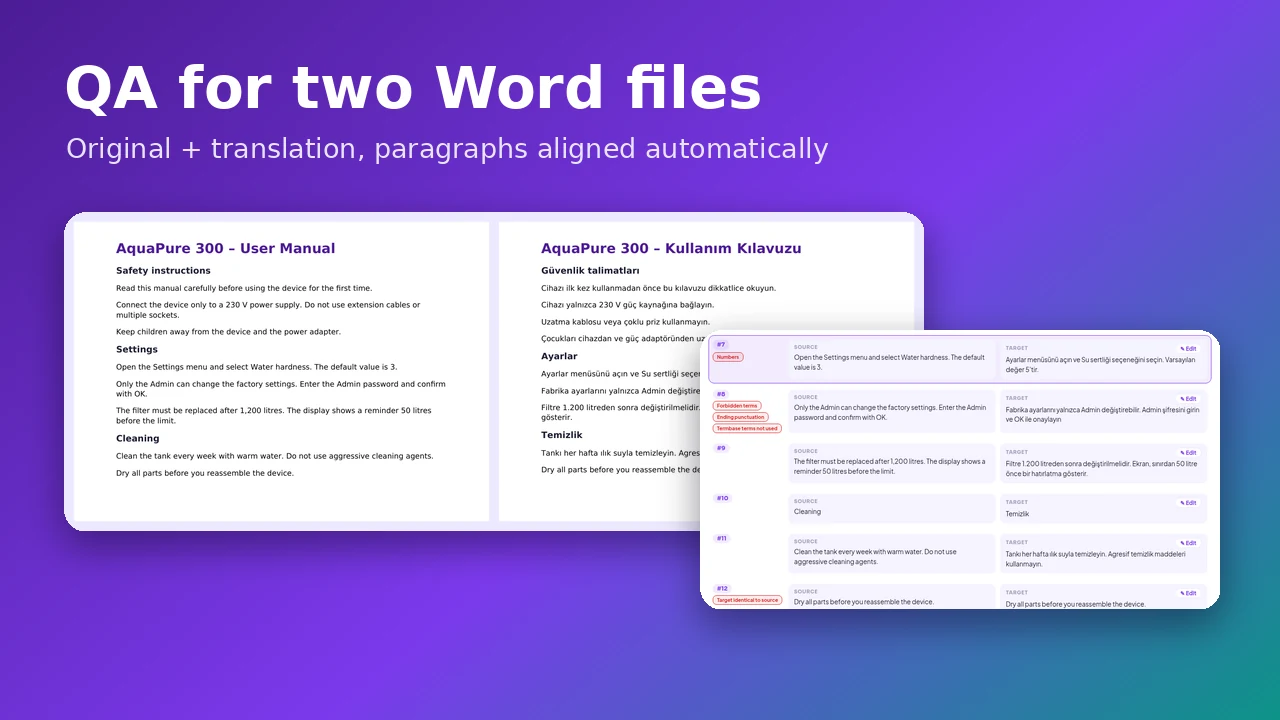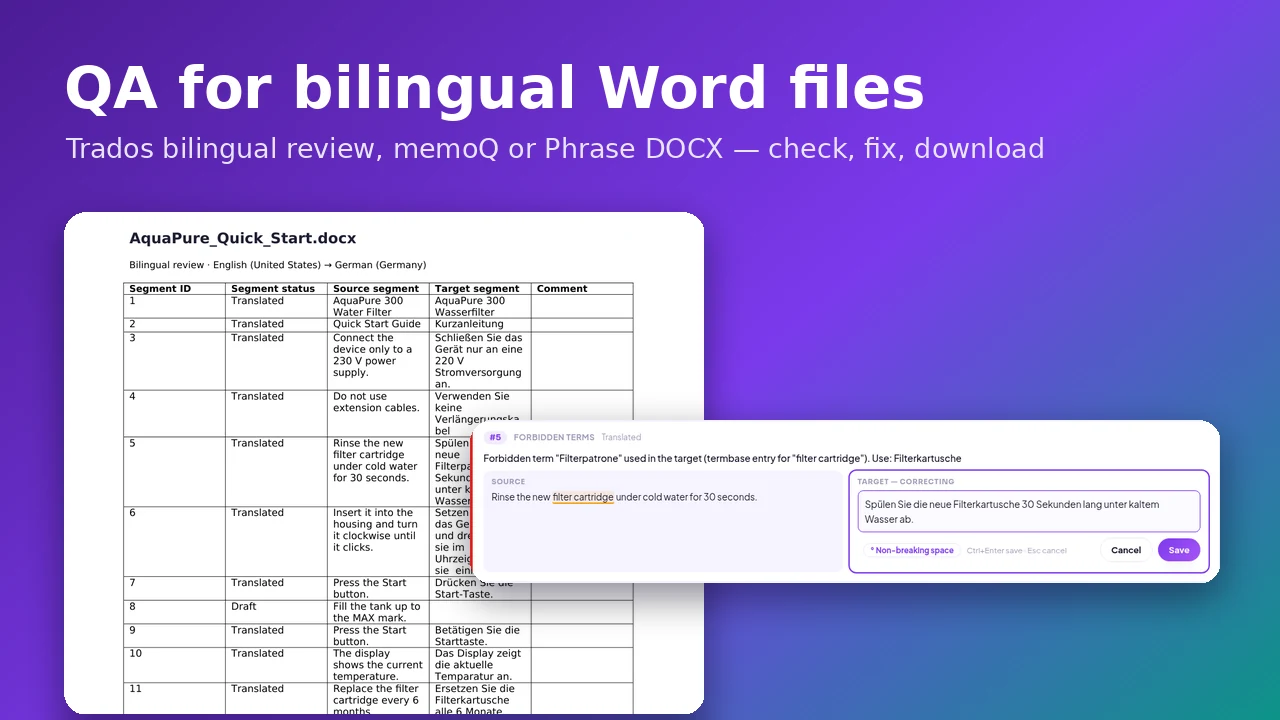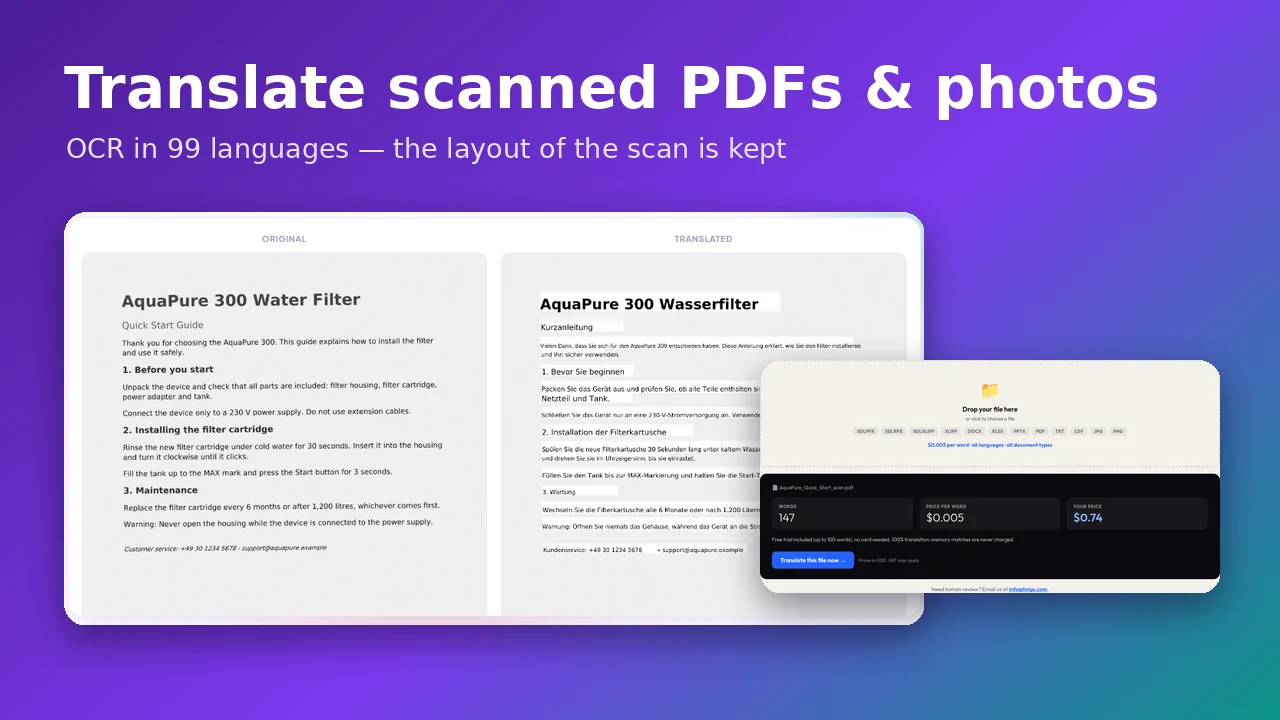
The last version of a translation is very often a PDF: the brochure after typesetting, the signed contract, the certificate that was printed, stamped and scanned. That is also the moment questions come up — “Is this translation correct?”, “Did the typesetter drop a sentence?”, “Are all the figures still right?” Until now, answering them meant reading two PDFs side by side.
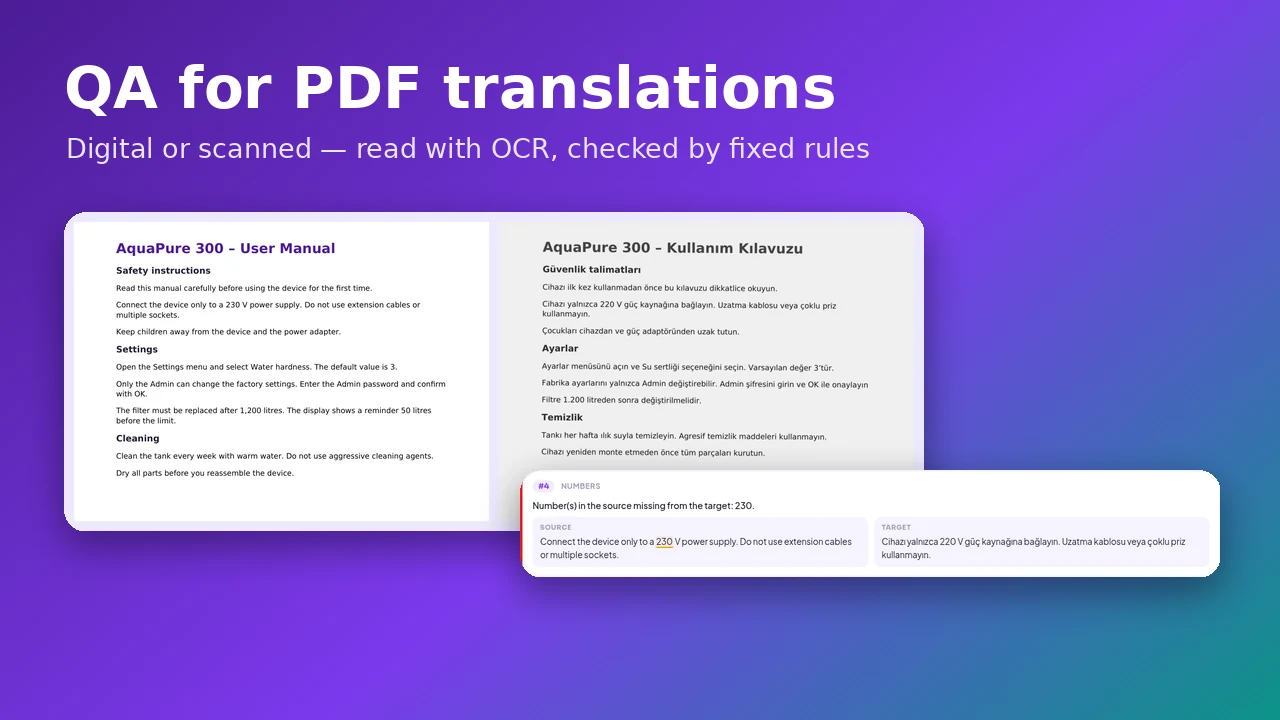
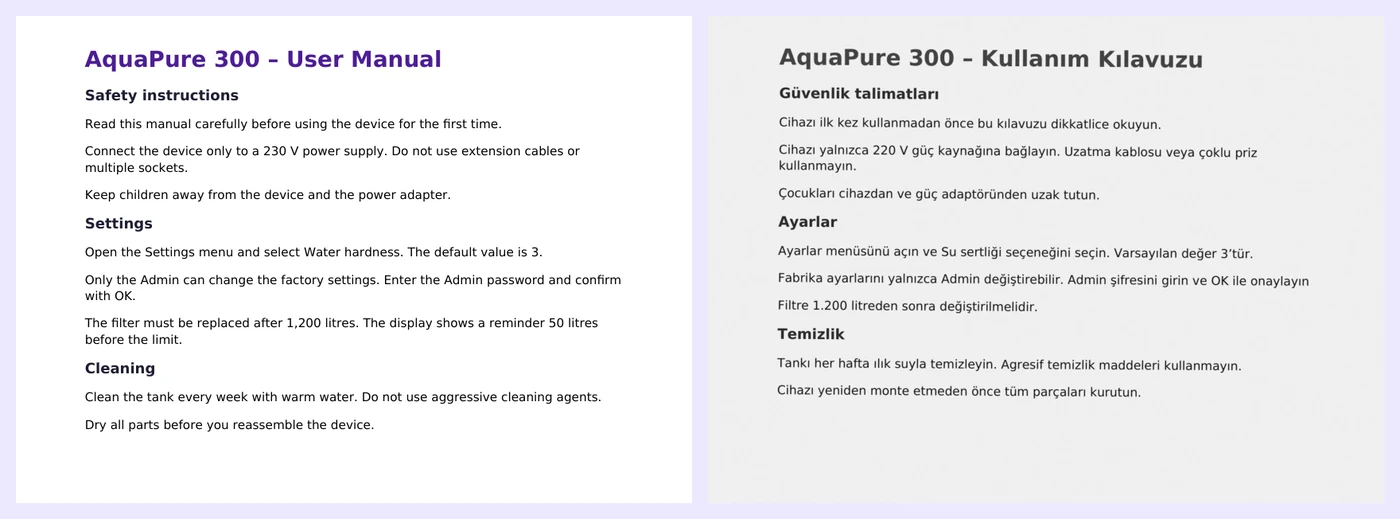
The Linigu QA Checker now accepts PDF files and images on both sides. It reads the text of each page — with OCR if the page is scanned —, pairs the paragraphs of the original and the translation and runs the same rule-based checks as for Trados and Word files. Our example: an English manual as a digital PDF and its Turkish translation as a slightly crooked scan.
Which combinations work?
Choose Original + translation and mix the formats as you need:
| Original | Translation | Corrections in the report |
|---|---|---|
| Word or PDF | Digital PDF | Check, search and export |
| Word or PDF | Scanned PDF or photo (JPG, PNG, TIFF) | Check, search and export |
| Scanned PDF or photo | Word | Yes — saved into the translated Word file |
| Word | Word | Yes — see QA for two Word files |
Step by step
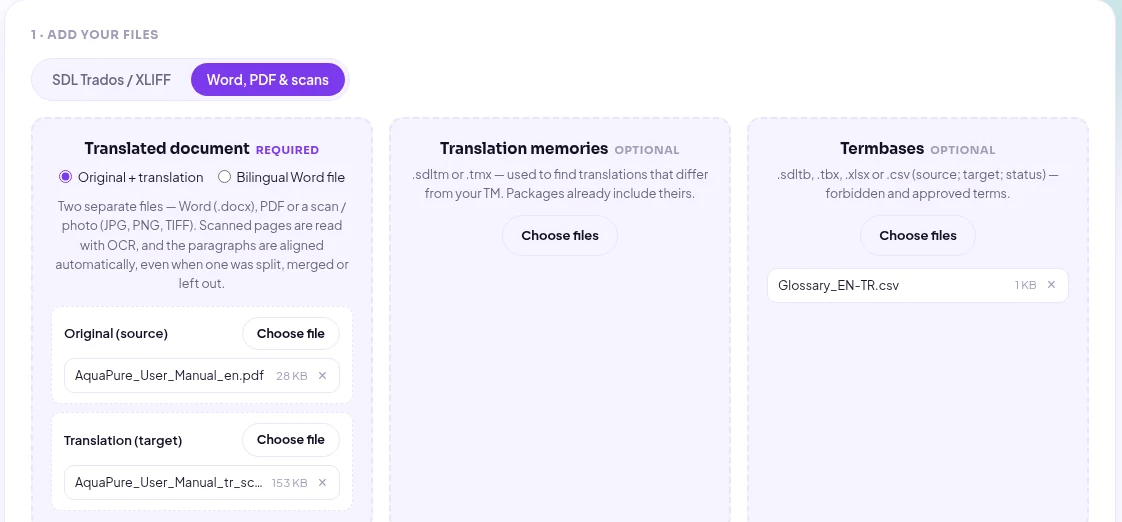
1. Upload the original and the PDF translation
Open the QA Checker, go to Word, PDF & scans and keep Original + translation. Put the original into Original (source) and the PDF or scan into Translation (target). Add a termbase if you have one — here an English–Turkish glossary that requires “Yönetici” for “Admin”.
2. Choose the languages
For scans, the languages matter twice: for the spelling and punctuation rules and for the text recognition itself. “Detect automatically” recognises the language from the first scanned page and then reads the whole scan with that language’s own model. For languages outside Western Europe — Russian, Arabic, Chinese, Hindi and others — choose them yourself.
3. Run the check
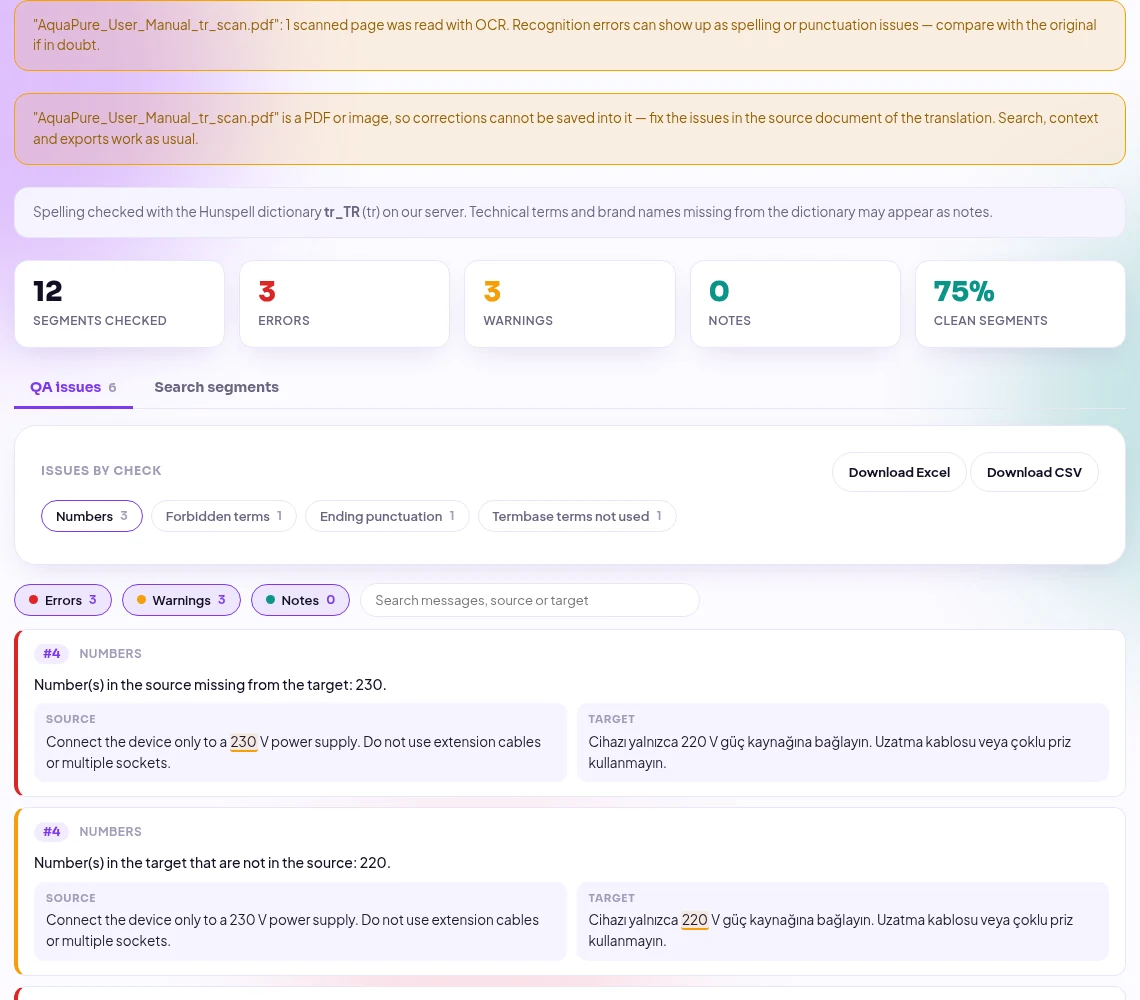
Click Run QA check. Scanned pages take about one to two seconds each. The report then tells you how many pages were read with OCR and that the translation is a PDF, followed by the summary — in our example 12 segments, 3 errors and 3 warnings.
What the checker found
The scanned Turkish manual contains four mistakes that are easy to miss when you read a printout:
| Paragraph | Check | What was wrong |
|---|---|---|
| #4 | Numbers | “230 V” became “220 V” |
| #8 | Forbidden term | “Admin” instead of the approved “Yönetici” |
| #8 | Ending punctuation | The final full stop is missing |
| #9 | Numbers | A whole sentence is missing — and with it the “50” |

The last one is a good example of why the numbers check is so useful on PDFs. In paragraph 9 the second sentence (“The display shows a reminder 50 litres before the limit”) was simply left out of the layout. No word is wrong, but the missing “50” gives it away:

Search the whole translation
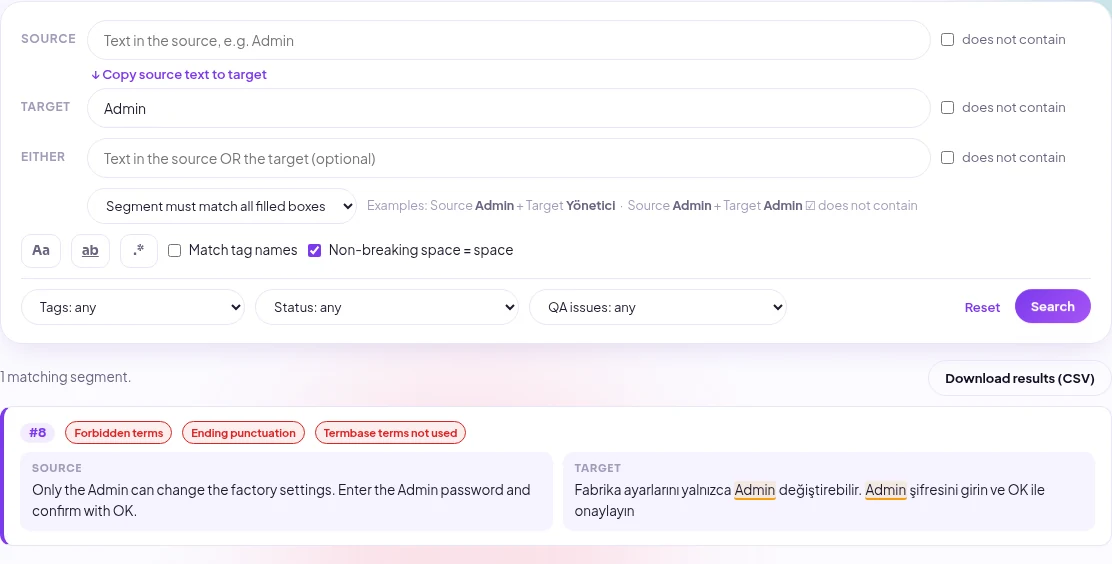
The Search segments tab works on PDF translations too. Search the source, the target or both, with “does not contain”, regular expressions and filters — for example every paragraph whose translation still contains “Admin”:
Why PDF translations are not edited in the report
A PDF is a print layout, not an editable text: the translation was written in Word, InDesign or a CAT tool and exported. So the QA Checker shows no Edit button for PDF translations — the right place for the fix is the source document. Export the report to Excel or CSV and send it to the translator or the typesetter, correct the source file, export the PDF again and run the check once more. If the translation is still available as a Word file, upload that instead and you can correct it directly in the report.
Getting reliable results from scans
- 300 dpi or more: a sharp scan gives a sharp text. Photos should be straight, flat and well lit.
- Language first: choose the source and target language for every language outside Western Europe.
- Read OCR errors as OCR errors: in one of our test scans “AquaPure” came out as “AguaPure”. If an issue looks strange, compare it with the scan before you report it to the translator.
- Numbers are robust: digits are recognised very reliably, so number checks are among the most valuable checks on scans.
Good to know
- Up to 50 scanned pages per file are read with OCR; digital PDF pages have no such limit.
- Each text block of a page becomes one paragraph. In complex layouts with many columns, use the context view to confirm the pairing.
- Headers, footers and page numbers that appear on every page are included as paragraphs.
- Password-protected PDFs cannot be opened — remove the password first. Handwriting is not recognised.
- No AI is involved: OCR and all checks run on our server, and files are deleted automatically after 24 hours.
Frequently asked questions
Can I check a PDF translation for free?
Yes. The QA Checker is free with a free account, for PDFs, scans, Word and Trados files.
Can the original be a scan as well?
Yes. Both sides can be scanned PDFs or photos; each page without a text layer is read with OCR.
Can I also translate a scanned document?
Yes — Linigu Translator reads scans with OCR and keeps the layout. Read how to translate scanned PDFs and photos.
What about bilingual tables or SDLXLIFF files?
They have their own modes: see QA for bilingual Word files and QA for SDL Trados files.
Have a PDF translation to check? Open the QA Checker and upload the original and the translation — the report is ready in seconds.