

4
Professional translators often work with more than one CAT tool. While SDL Trados Studio dominates much of the market, many agencies and enterprise clients still rely on Transit NXT from STAR Group. For translators who move between these tools, the biggest challenges are usually workflow differences, keyboard shortcuts, and file interoperability.
In this article, we’ll explore:
-
How to work efficiently with Transit NXT
-
The core Transit NXT translation workflow
-
Key keyboard shortcuts in Transit NXT
-
A practical comparison with SDL Trados shortcuts and habits
-
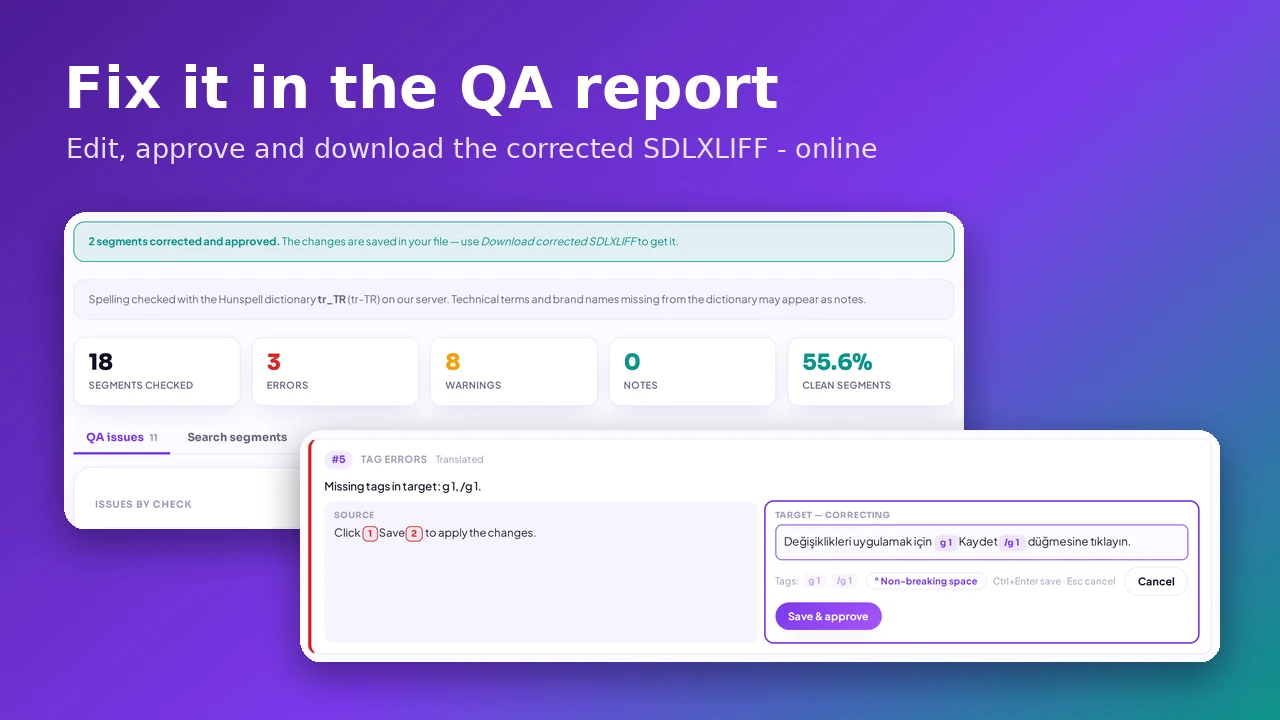
How linigu.cloud’s SDL Converter helps you convert Transit files into Excel or Word for instant visibility and QA
Whether you’re new to Transit or coming from Trados, this guide will help you work faster and smarter.
1. Understanding the Transit NXT Workflow


At its core, Transit NXT is built around context-aware translation, not just isolated segments. This is the first major mindset shift for translators used to SDL Trados.
Typical Transit NXT Workflow
-
Open or receive a Transit project package
-
Load the source file into the Transit editor
-
Translate segments with continuous TM and terminology lookup
-
Review translations using Synch View (layout + text alignment)
-
Save translations into the Transit reference material (TM)
-
Deliver or export reference data if needed
Unlike SDL Trados, Transit places strong emphasis on document structure and context, which influences both navigation and shortcut usage.
2. The Transit NXT Editor: What Feels Different from SDL Trados?
4
Segment Handling
-
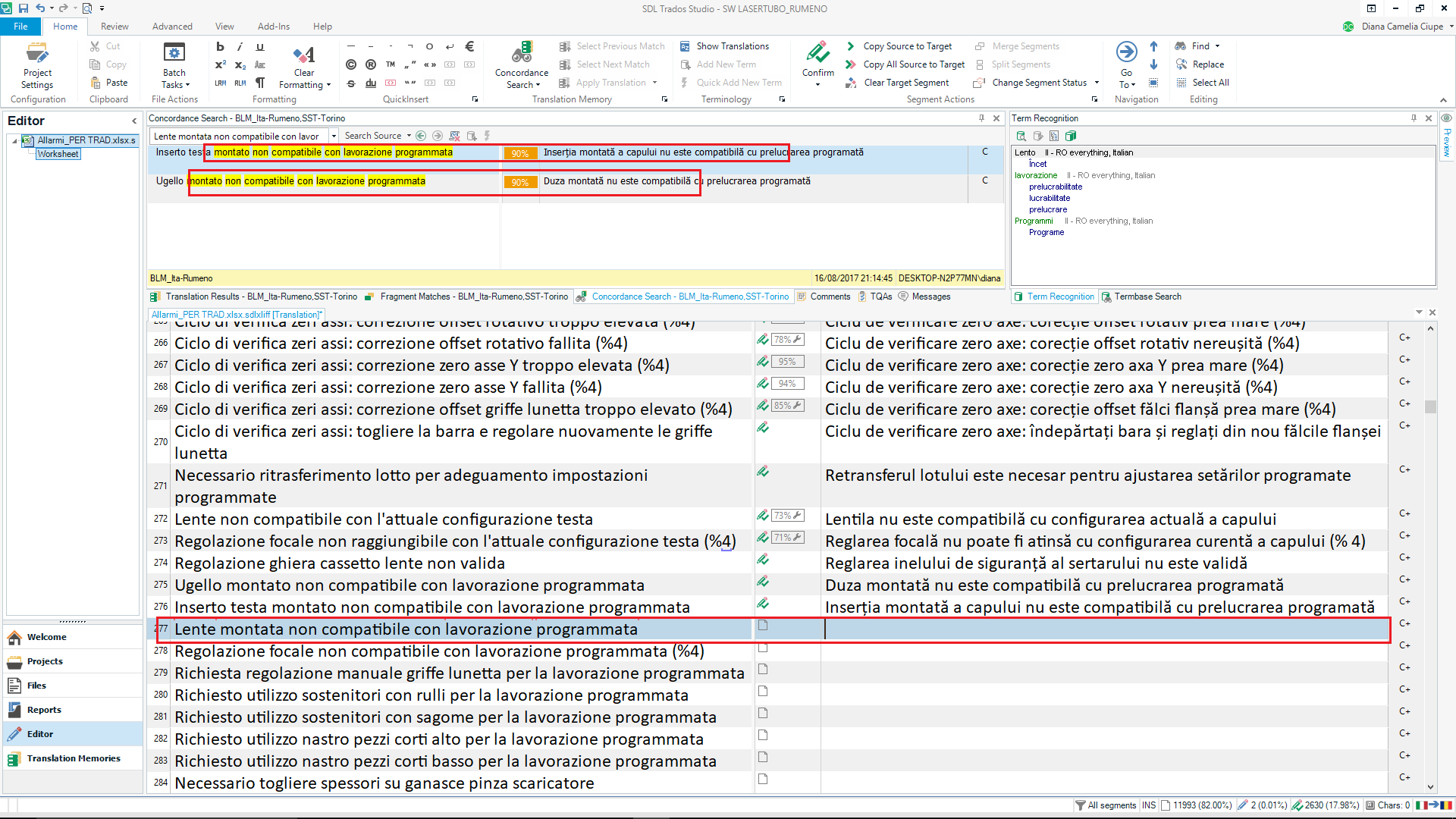
SDL Trados: Segment-by-segment grid with confirmation states
-
Transit NXT: Flow-based editing with continuous reference checks
In Transit, translation feels more like working inside a live document, while Trados feels more like processing rows in a table.
Context Visibility
Transit constantly shows:
-
Previous and next segments
-
Reference material usage
-
Terminology matches in real time
This reduces ambiguity but requires different navigation habits — and shortcuts.
3. Essential Transit NXT Keyboard Shortcuts


4
Transit NXT shortcuts vary slightly by configuration, but the following are commonly used and widely recognized among professional users.
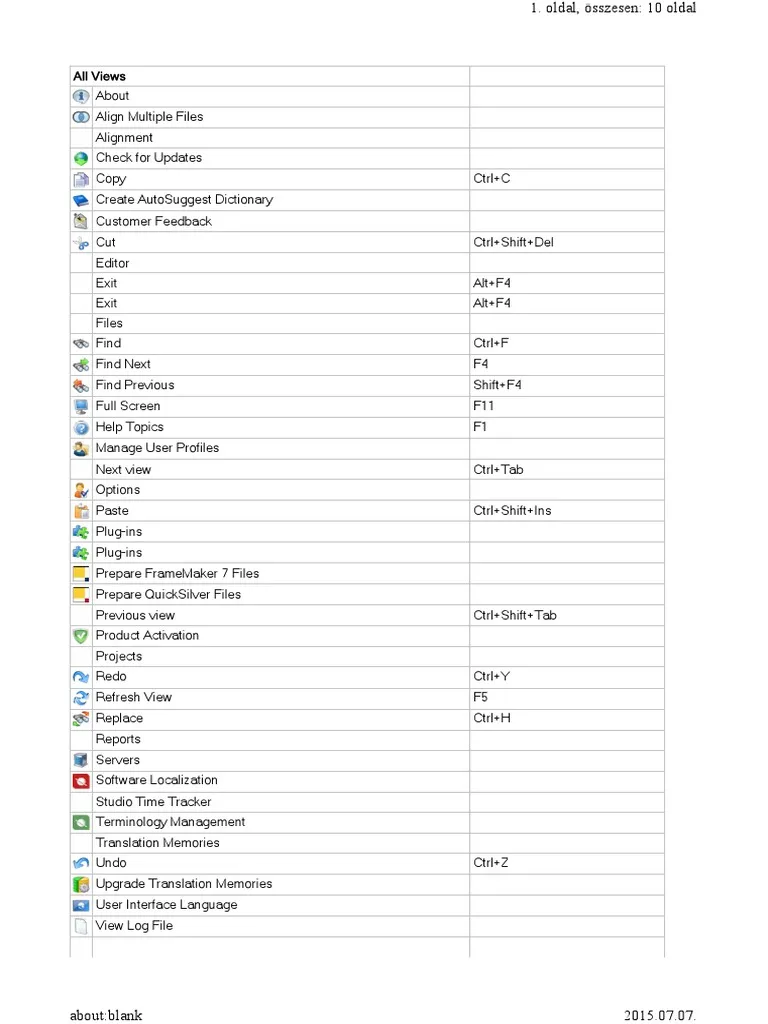
Core Navigation Shortcuts (Transit NXT)
-
Enter → Confirm segment and move forward
-
Ctrl + Enter → Insert line break within segment
-
Ctrl + Arrow Keys → Navigate between segments
-
Ctrl + Space → Insert best matching reference translation
-
Alt + Down → Cycle through fuzzy matches
Editing & Reference Handling
-
Ctrl + T → Open terminology entry
-
Ctrl + R → Search reference material
-
Ctrl + Shift + R → Refresh reference suggestions
-
Ctrl + Z / Ctrl + Y → Undo / Redo
QA & Review
-
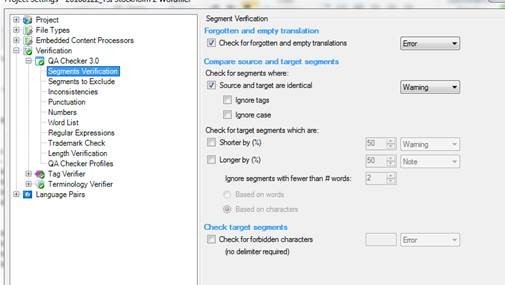
Ctrl + Q → Run quality checks
-
Ctrl + Shift + C → Check consistency
-
Ctrl + F → Find in document
Transit relies heavily on keyboard-driven workflows, especially for translators working on large technical documents.
4. SDL Trados Shortcuts: What Most Translators Already Know

4
Most translators coming from SDL Trados are familiar with shortcuts like:
Common SDL Trados Shortcuts
-
Ctrl + Enter → Confirm segment
-
Ctrl + Alt + Enter → Confirm without TM update
-
Ctrl + Down → Move to next untranslated segment
-
Ctrl + Space → Insert best fuzzy match
-
F8 → QA Checker
-
Ctrl + Shift + L → Lock segment
SDL Trados emphasizes segment status control, while Transit emphasizes reference continuity.
5. Shortcut Comparison: Transit NXT vs SDL Trados
| Task | Transit NXT | SDL Trados |
|---|---|---|
| Confirm segment | Enter | Ctrl + Enter |
| Insert best match | Ctrl + Space | Ctrl + Space |
| Navigate segments | Ctrl + Arrows | Ctrl + Down |
| Terminology lookup | Ctrl + T | Ctrl + F8 |
| QA check | Ctrl + Q | F8 |
| Focus on context | High | Medium |
| Segment status control | Limited | Strong |
Key takeaway:
Transit is optimized for continuous translation flow, while SDL Trados is optimized for segment lifecycle management.
6. Practical Tips for Trados Users Switching to Transit NXT
Tip 1: Stop Thinking in “Segment Status”
Transit doesn’t rely on the same locked/unlocked logic as Trados. Focus on reference quality, not confirmation states.
Tip 2: Use the Keyboard More
Transit rewards translators who stay on the keyboard. Mouse-heavy workflows slow you down.
Tip 3: Trust Reference Material
Transit’s fuzzy and dual-fuzzy logic is powerful — don’t ignore partial matches.
7. The Real Pain Point: Accessing Transit Data Outside the Tool
Even experienced Transit users face a major limitation:
Transit files and reference material are hard to inspect outside Transit itself.
Translators often need to:
-
Review translation memories
-
Perform QA in Excel
-
Share linguistic data with clients
-
Compare Transit data with SDL Trados TMX files
This is where conversion becomes essential.
8. How Linigu.cloud’s SDL Converter Solves This
The SDL Converter on linigu.cloud provides a practical solution for translators working with Transit NXT.
With free registration, you can:
-
Convert Transit reference files into Excel
-
Instantly view segments, source, and target texts
-
Filter and audit translations
-
Perform terminology and QA checks
-
Compare Transit data with SDL Trados exports
Instead of struggling with opaque formats, you get clear, human-readable tables that fit naturally into your QA workflow.
9. Example Workflow: Transit NXT + Linigu Converter
-
Translate in Transit NXT
-
Export reference material
-
Upload to linigu.cloud SDL Converter
-
Convert to Excel
-
Review, filter, and QA
-
Share results with PMs or clients
This hybrid workflow combines Transit’s context power with Excel’s transparency.
Conclusion
Working with Transit NXT requires a slightly different mindset than working with SDL Trados Studio, especially when it comes to shortcuts, navigation, and workflow logic. Transit prioritizes context, continuity, and reference intelligence, while Trados prioritizes segment control and lifecycle states.
For translators who work with both tools, mastering the shortcut differences and workflow expectations is key to productivity. And when you need to step outside the CAT tool, linigu.cloud’s SDL Converter makes Transit data instantly accessible by converting it into Excel or Word, saving time and improving quality control.